Check USB-C video before buying a monitor
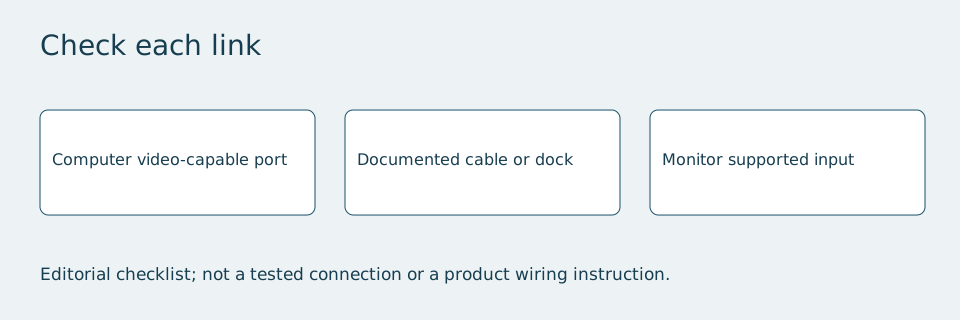
Verify the exact source port, cable route and power arrangement before ordering a USB-C display.
Updated:
Start with the computer’s exact port
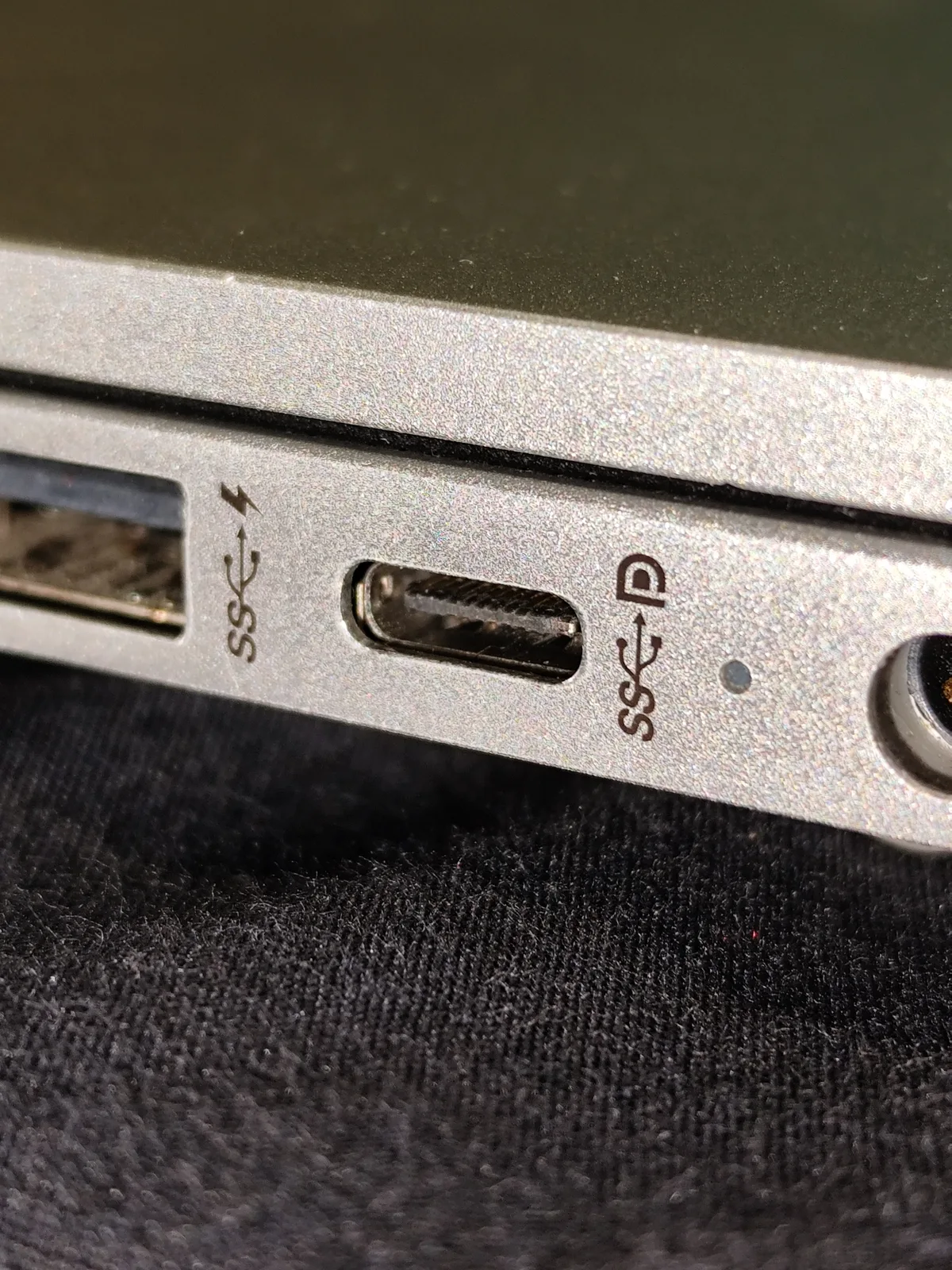
A USB-C connector fitting into a socket does not establish that the computer can send a picture through it. Before ordering a USB-C monitor, write down the computer model, the particular socket you intend to use and the display model. Look up that socket in the computer’s own documentation. A charging symbol, an online photograph or another laptop in the same family is insufficient evidence for your exact configuration.
Dell’s US support article 000326500, checked on 28 October 2026, identifies three affected portable models: C1422H, P1424H and P1425. For those models, Dell requires a host USB-C port supporting DisplayPort Alt Mode or an appropriate Thunderbolt port. A port providing only data or power does not supply their video signal. These are model-specific instructions, not a claim that every monitor uses the same connection arrangement.
Trace the complete cable route
Make a small connection record: computer socket, cable, any dock, monitor input. Each additional device introduces another specification to verify. Dell’s instructions for these three portable displays call for a USB-C-to-USB-C connection; the article describes USB-C-to-HDMI or USB-C-to-DisplayPort cables as a possible cause of their missing picture. Do not turn that example into a universal prohibition on adapters for displays with different inputs.
If your computer has an unmarked USB-C socket, Dell specifically advises checking its manual. If the required video capability is absent, choose a documented alternative monitor input and a compatible source path. Buying a more expensive cable alone cannot create a video capability that the source port lacks. Keep the proposed route with your shopping notes so a seller can answer a specific compatibility question.
Check power separately from video
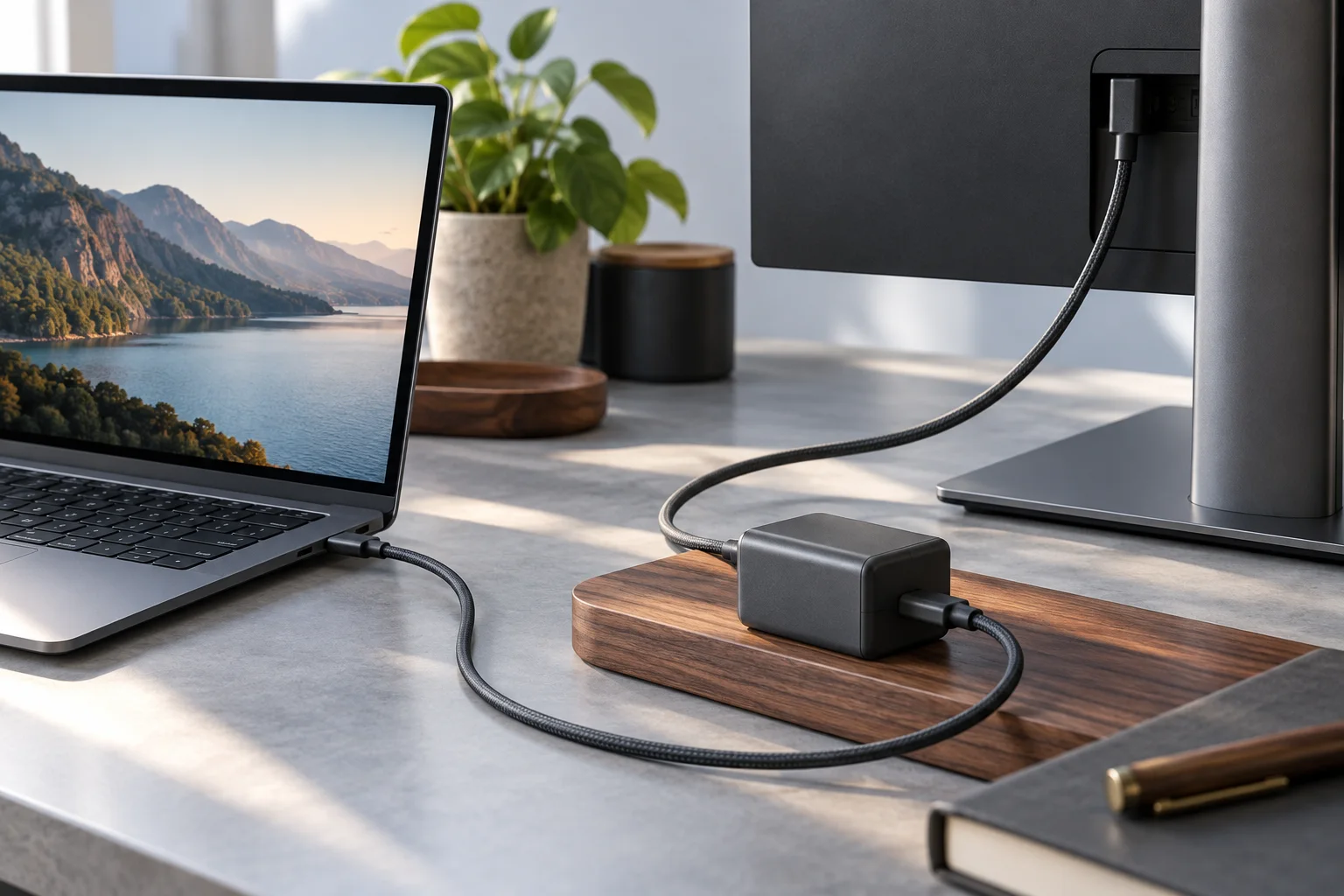
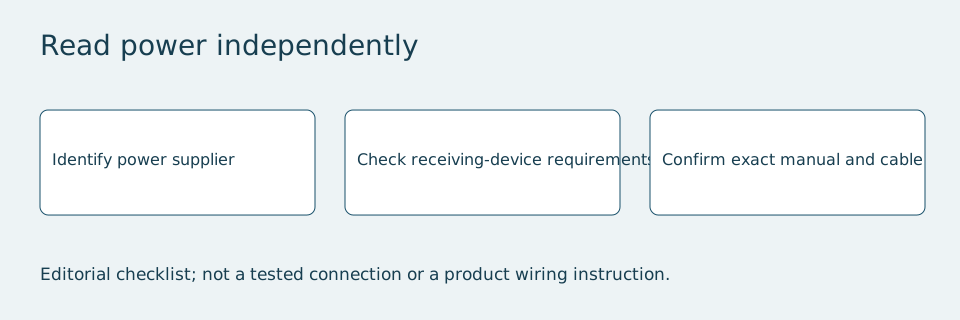
After establishing a documented video path, read the power requirements independently. A picture appearing does not prove that the same connection can adequately power a portable display or charge a notebook. Record which device supplies power, which socket accepts it, the documented adapter requirements and whether the included cable is required. Distinguish a monitor receiving power from a desktop monitor supplying charging power to a computer.
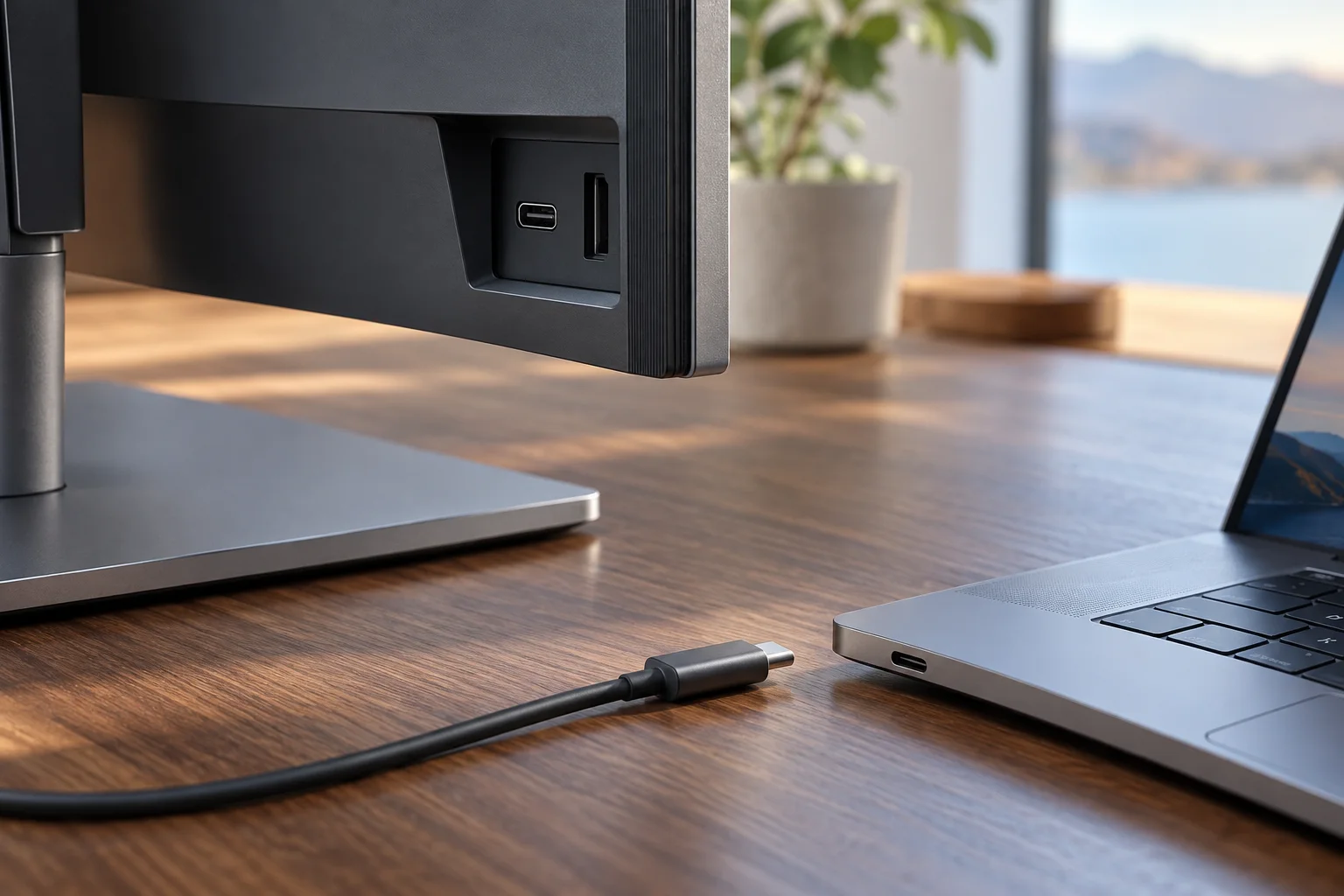
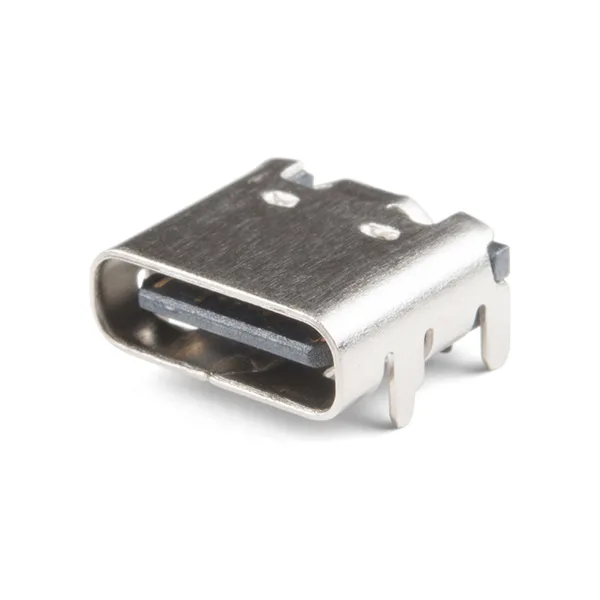
Avoid treating a bare connector component as evidence of either function. The connector photograph below shows the physical interface only. Its shape cannot tell you the implemented video mode, charging negotiation or supported display resolution. Those answers belong in the finished product’s documentation, along with any limits applying when several ports are in use.
As a bounded example, Dell’s P1424H US specification page lists a 14-inch panel, 1920 × 1080 pixels and a supplied USB-C cable measuring 3.3 ft. That length is approximately 100.6 cm: 3.3 × 30.48. It is a cable-length conversion, not a tested maximum cable run or a claim about other displays. The specification snapshot was checked on 2026-10-28; current pricing and availability are outside this comparison.
Keep the photographs and specifications separate
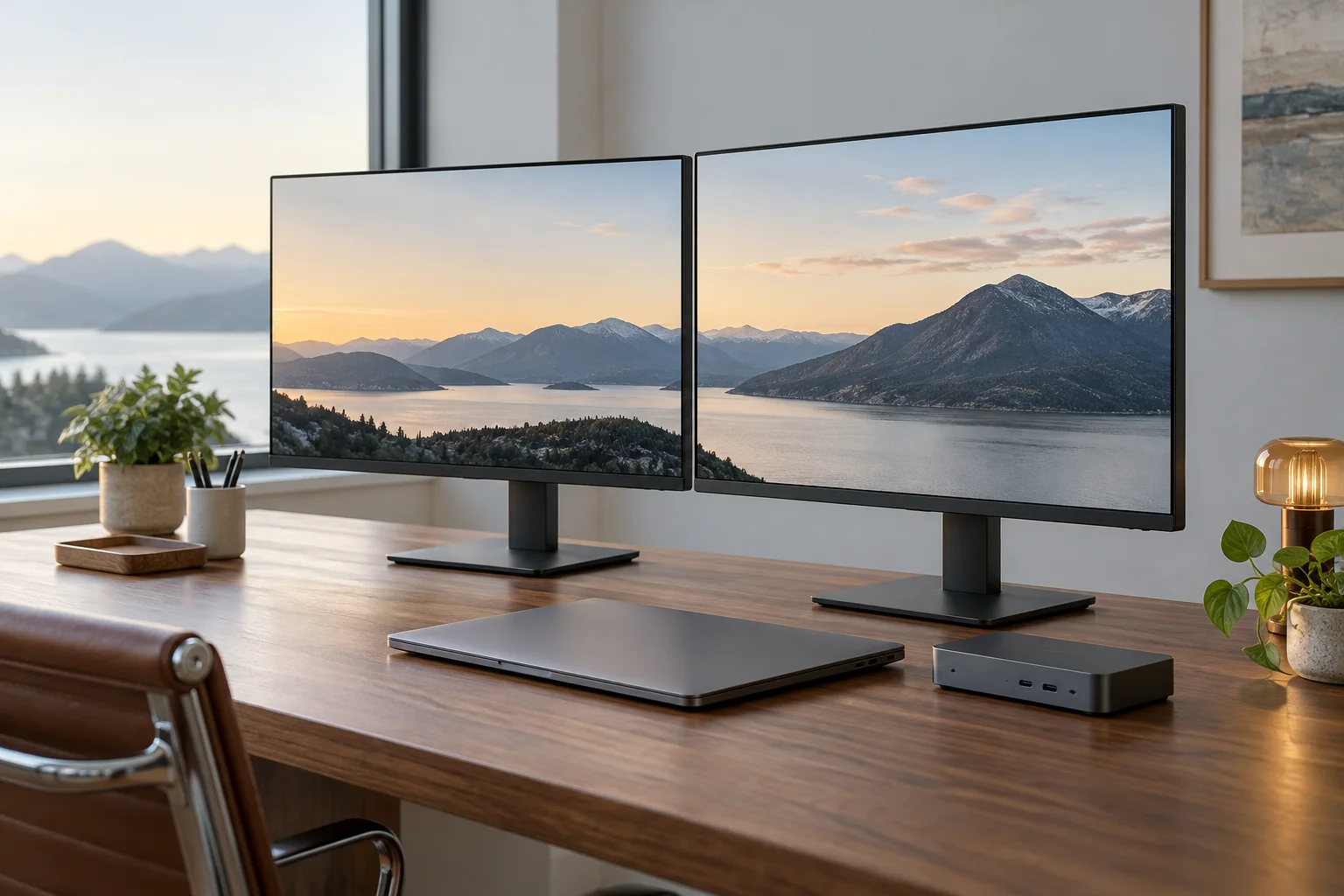
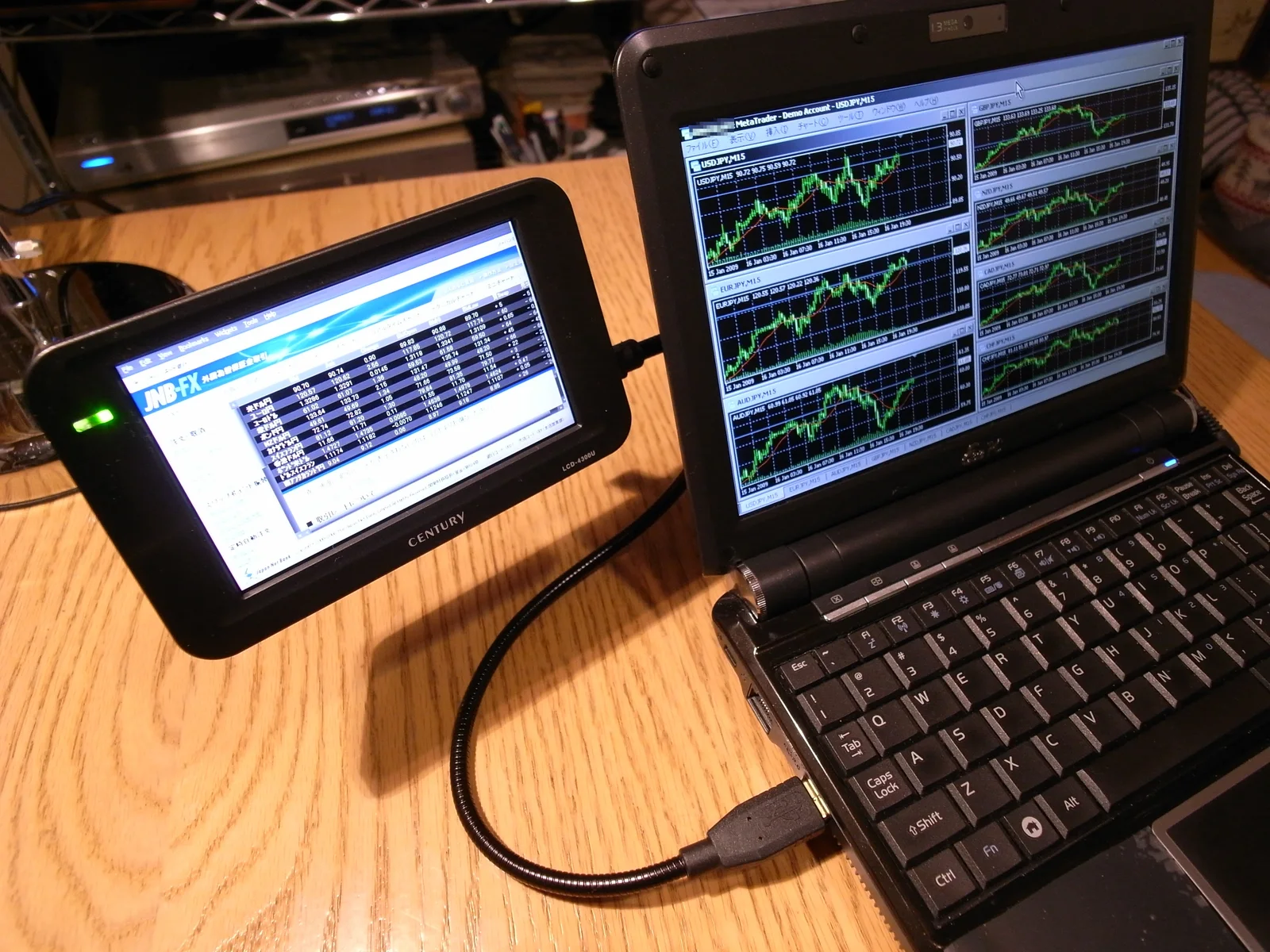
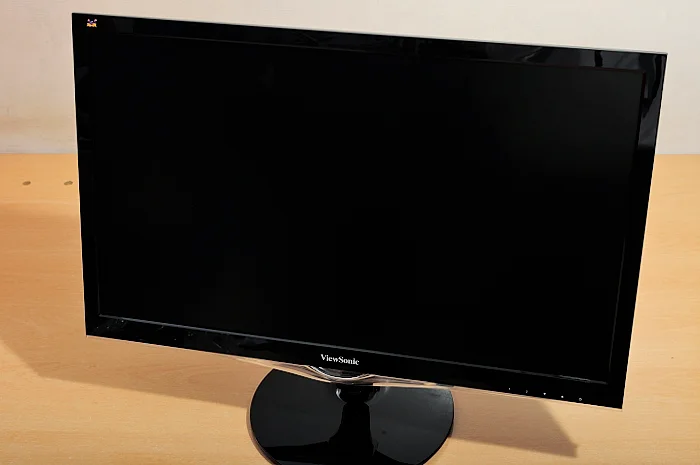
The photographed ViewSonic display is an example of a standalone monitor, not one of the Dell portable models discussed here. The laptop-port photograph shows a real socket and adjacent markings, while the separate component shows the same connector family at the hardware level. None is a compatibility test of your equipment. Use these images to identify what needs checking, then use exact documentation to decide what to buy.
A practical decision before checkout
Proceed when you can identify the source’s video-capable port, the documented cable route and the power arrangement for the exact monitor. Pause the purchase when one of those entries remains unknown. Ask the manufacturer or seller for a written answer naming both models and any dock involved, rather than accepting a general statement that USB-C works.
For equipment you already own, follow the monitor’s supplied setup procedure and select the documented input. If a documented route still produces no picture, preserve the model numbers and connection notes for support. This guide does not establish current stock, prices or a tested recommendation; it helps you remove an avoidable compatibility uncertainty before committing to a display.
A real USB-C input versus a data-only socket
A useful buying distinction appears in two actual Dell models. P1424H is the portable-display example covered by Dell’s USB-C video support instructions. P2725H, by contrast, lists its USB-C connector as downstream, data only, with up to 15 W PD. Its documented video inputs are separate. A buyer specifically seeking a USB-C video input should therefore not mistake the P2725H’s USB-C socket for that feature. This comparison concerns connector function, rather than recommending one display for every user.
| Exact model | Documented USB-C role | Consequence for a USB-C-video purchase |
|---|---|---|
| Dell P1424H | USB-C / DP1.2 Alt Mode portable-display connection | Host video capability and supported USB-C-to-USB-C route must be confirmed |
| Dell P2725H | Downstream data-only USB-C, up to 15 W PD | Use a documented separate video input; this USB-C socket is not a video input |