Check a laptop’s complete two-monitor path
Compare the documented native display limits of M1 and M3 MacBook Air models before buying two screens or a dock.
Updated:
An M1 and an M3 MacBook Air do not offer the same native arrangement
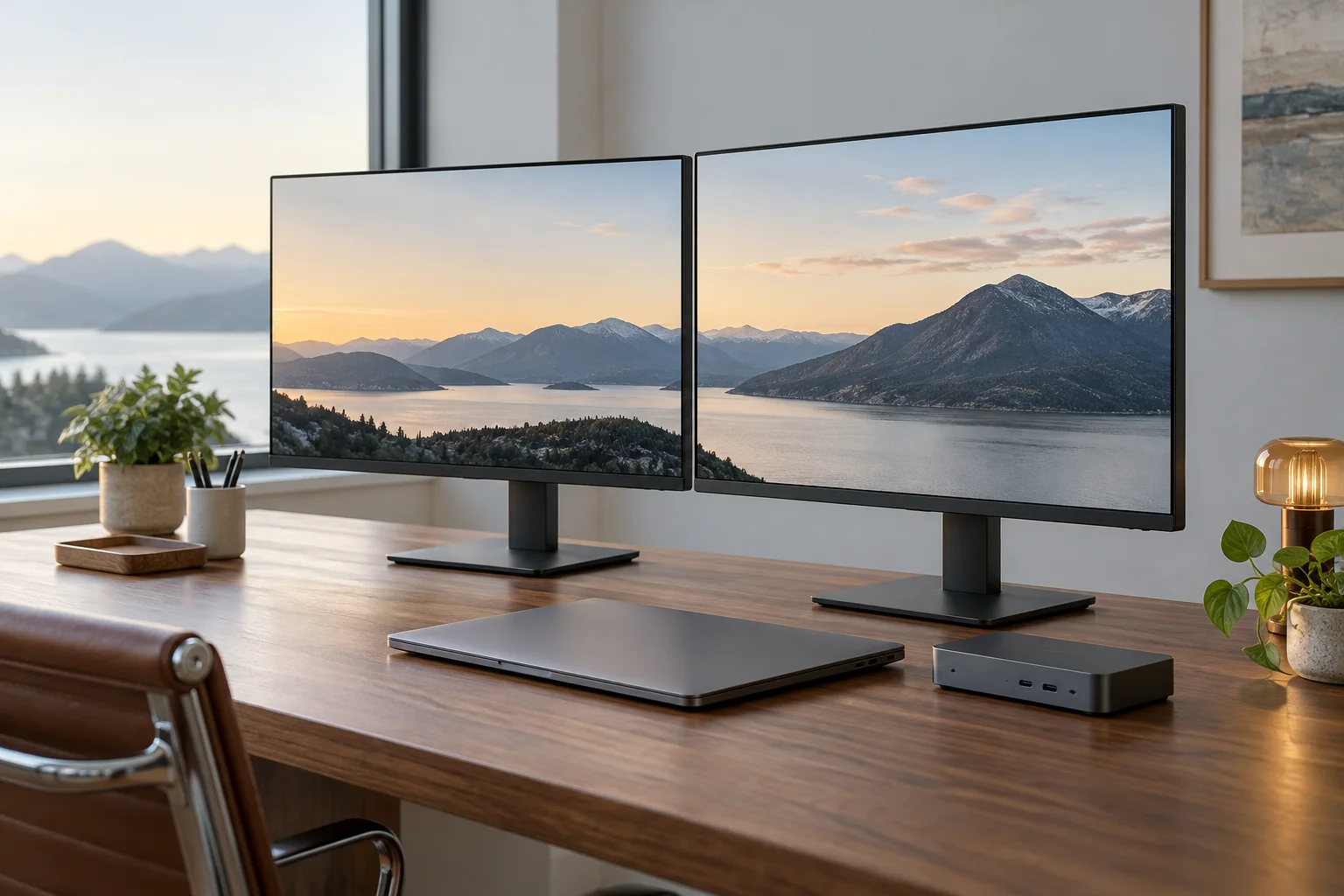
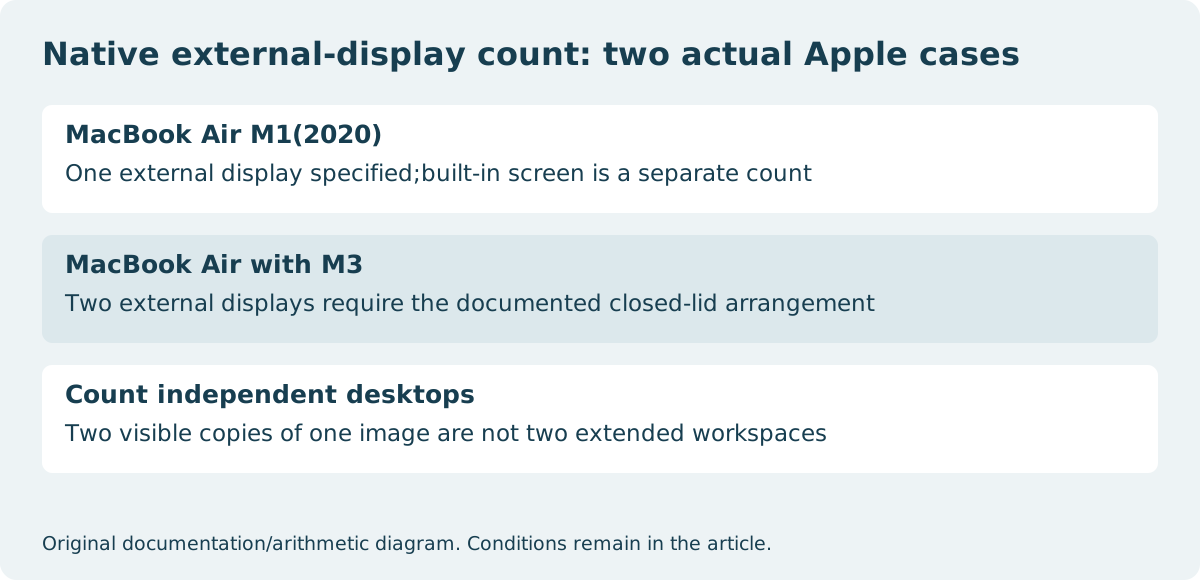
If you need two independent external desktops, establish the exact laptop’s native display count before choosing a dock. Apple’s MacBook Air M1(2020) specifications list one external display up to 6K at 60 Hz alongside the built-in display. Apple’s M3 support guidance instead describes two external displays with the laptop lid closed, subject to its power, peripheral and operating-system requirements. Two physical USB-C sockets are therefore not evidence of two independent native external outputs.
For an M1 Air owner requiring two native external screens, this documented limit can stop an unsuitable second-monitor or ordinary-dock purchase. For an M3 Air owner willing to close the lid, the supported arrangement is a genuine alternative. Neither statement evaluates every third-party USB graphics system or its software; those would require a separately documented compatibility decision.
| Exact laptop family | Documented native external arrangement | Purchase consequence |
|---|---|---|
| MacBook Air M1(2020) | One external, up to 6K60Hz | A second socket or passive splitter does not add a native display engine |
| MacBook Air with M3 | Two external with lid closed:primary up to 6K at 60 Hz(or 4K at 144 Hz); secondary up to 5K at 60 Hz(or 4K at 100 Hz) | Check operating system, power and external input devices before choosing accessories |
Count the laptop screen separately
A request for two monitors can mean two external screens, or one external screen plus the notebook display. Those are different requirements. Write the number of independent desktops needed and whether the built-in panel must stay active. Mirroring one image onto two panels does not satisfy a requirement for two independent external workspaces.
For the M3 arrangement, Apple states that opening the lid makes the secondary external display disconnect or go dark. That condition matters if you planned to use the laptop keyboard or a third visible workspace. Record it before treating a two-display advertisement as a three-screen purchasing solution.
Keep the M3 conditions with its display claim
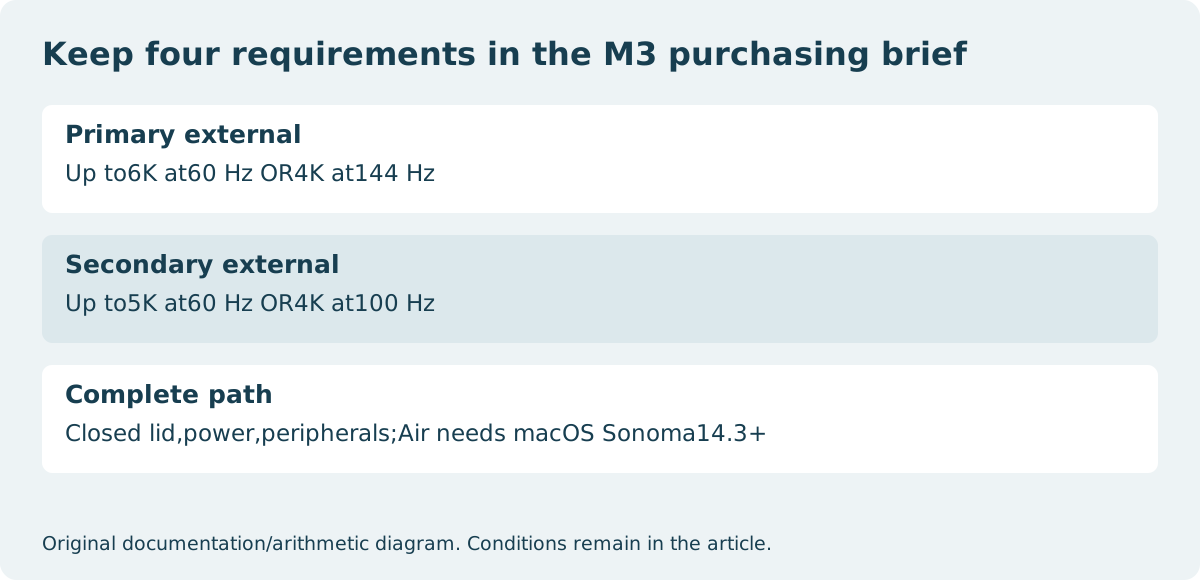
Apple specifies macOS Sonoma14.3 or later for MacBook Air with M3, an external keyboard and mouse or trackpad, and power supplied through USB-C or the appropriate adapter arrangement. Its separate M3 MacBook Pro requirement is Sonoma14.6 or later; do not transfer that version indiscriminately between laptop families. The primary and secondary external displays also have separately stated supported modes.
These are model-specific manufacturer conditions, not a claim that any two monitors at any resolution work through one cable. Choose the intended mode for each display, then verify the exact source outputs and any intervening dock or adapter. A dock’s two HDMI receptacles do not by themselves settle the host’s display count, independent-desktop behavior or mode limits.
For the M3 arrangement, Apple gives the first connected external display a maximum of 6K at 60 Hz or 4K at 144 Hz. Its second connected external display supports up to 5K at 60 Hz or 4K at 100 Hz. These are separately documented alternatives, not a promise of two4K144 Hz screens. Apple’s sequence connects the first display, closes the lid, then connects the second. Preserve the primary/secondary order and the complete source/cable requirements when requesting a two-monitor quote.
Assess a dock as another specified device
For a proposed purchase, ask the dock manufacturer for compatibility with the exact laptop model, operating system and two desired display modes. Distinguish native video transport from a product needing additional graphics software. Keep any restrictions on resolution, refresh rate, power supply and simultaneous outputs with the written offer. Do not replace an unresolved requirement with the word universal.
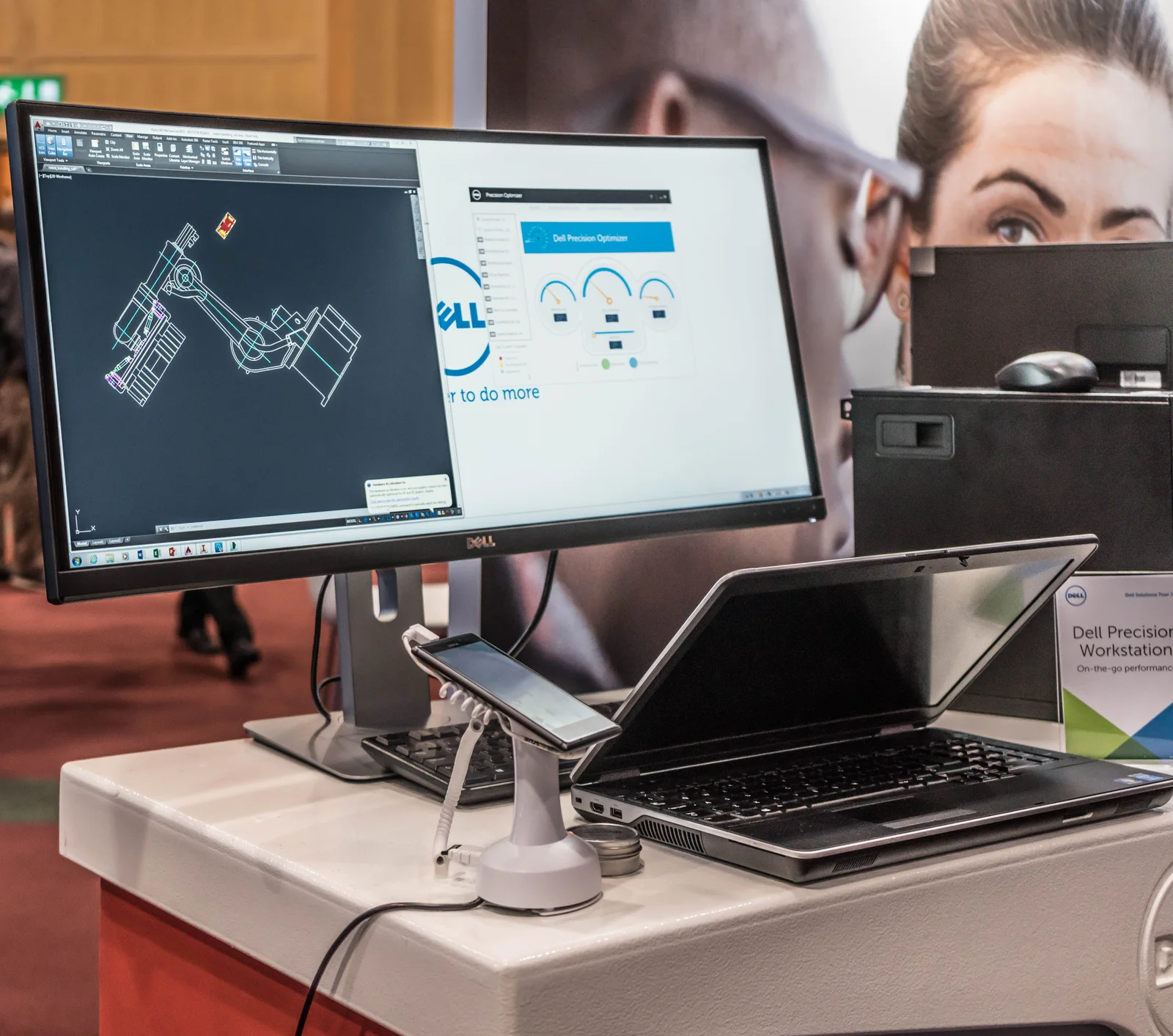
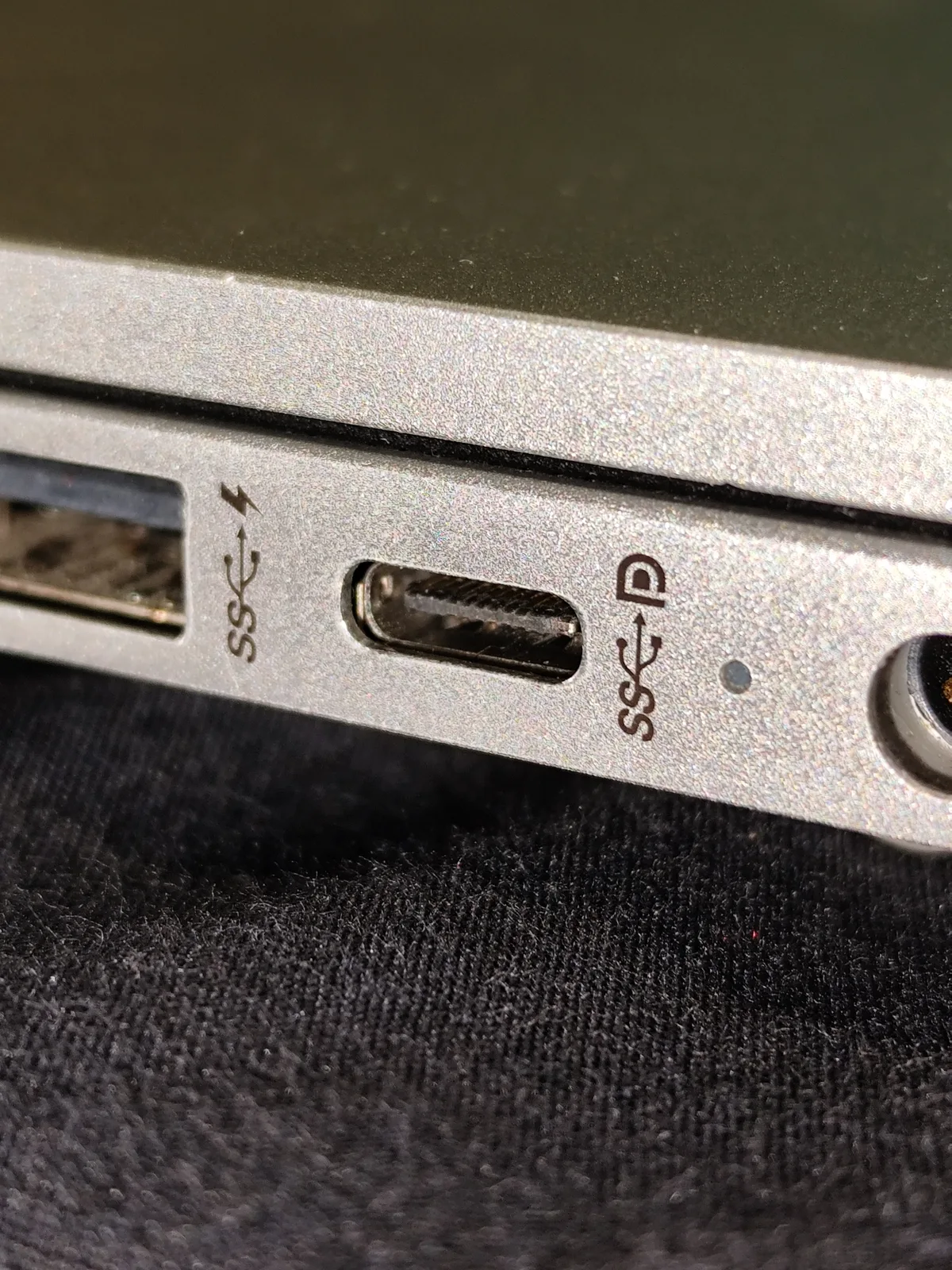
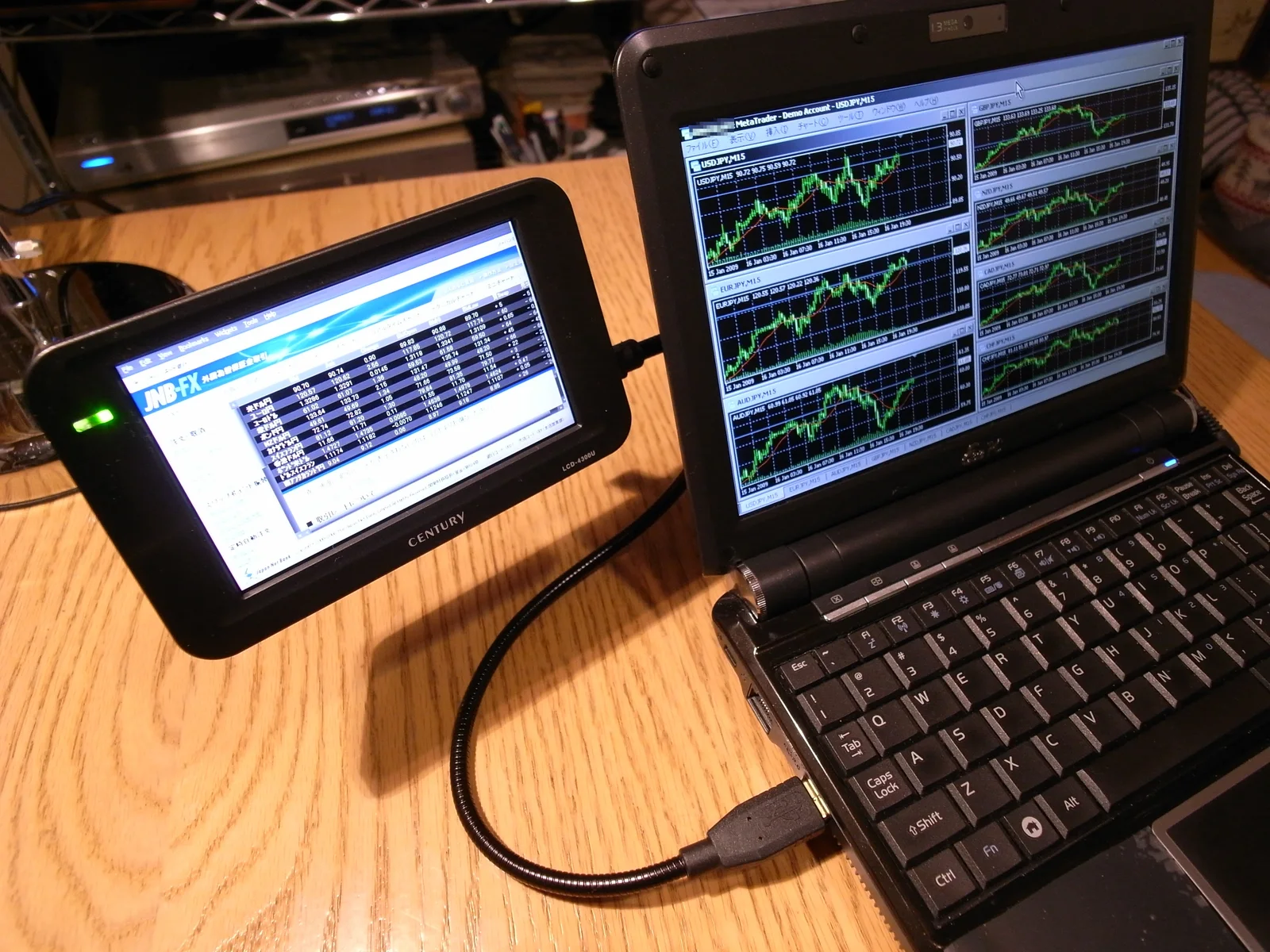
The archival laptop-and-ultrawide photograph shows a real single external-display arrangement, not proof of two native outputs. The laptop-port and older USB-display photographs illustrate physical endpoints and another historical display path. None shows the exact M1/M3 configurations or establishes compatibility by appearance.
Buy against the complete requirement
A useful final brief names the laptop and chip, operating system, number of independent external screens, lid state, each desired mode and the documented dock or direct-connection route. If the notebook screen must remain usable, the M3 closed-lid solution does not answer that brief. If one external screen is enough, the M1 limit need not be a problem.
Save the supporting documents with the accessory identifiers. This comparison gives real limits that can eliminate the wrong purchase; it does not promise current stock, a particular dock’s performance or a measured productivity gain. Verify the complete proposed arrangement before committing to equipment that cannot meet the stated display count.