Share one keyboard and mouse between two computers
A monitor KVM moves the keyboard and mouse along with the picture, but only when each computer has a video cable and a USB upstream cable.
Updated:
What the switch on the monitor actually moves
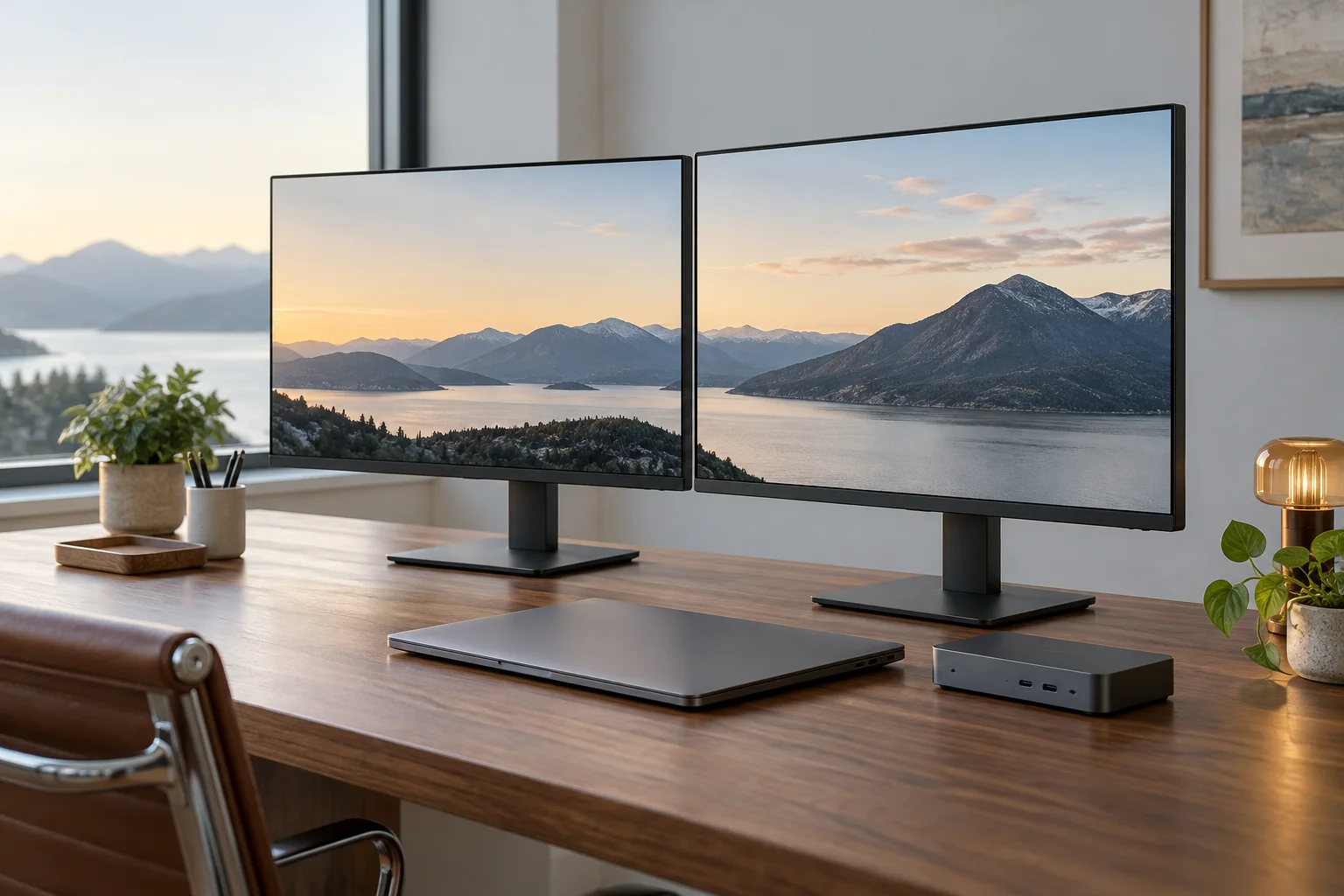
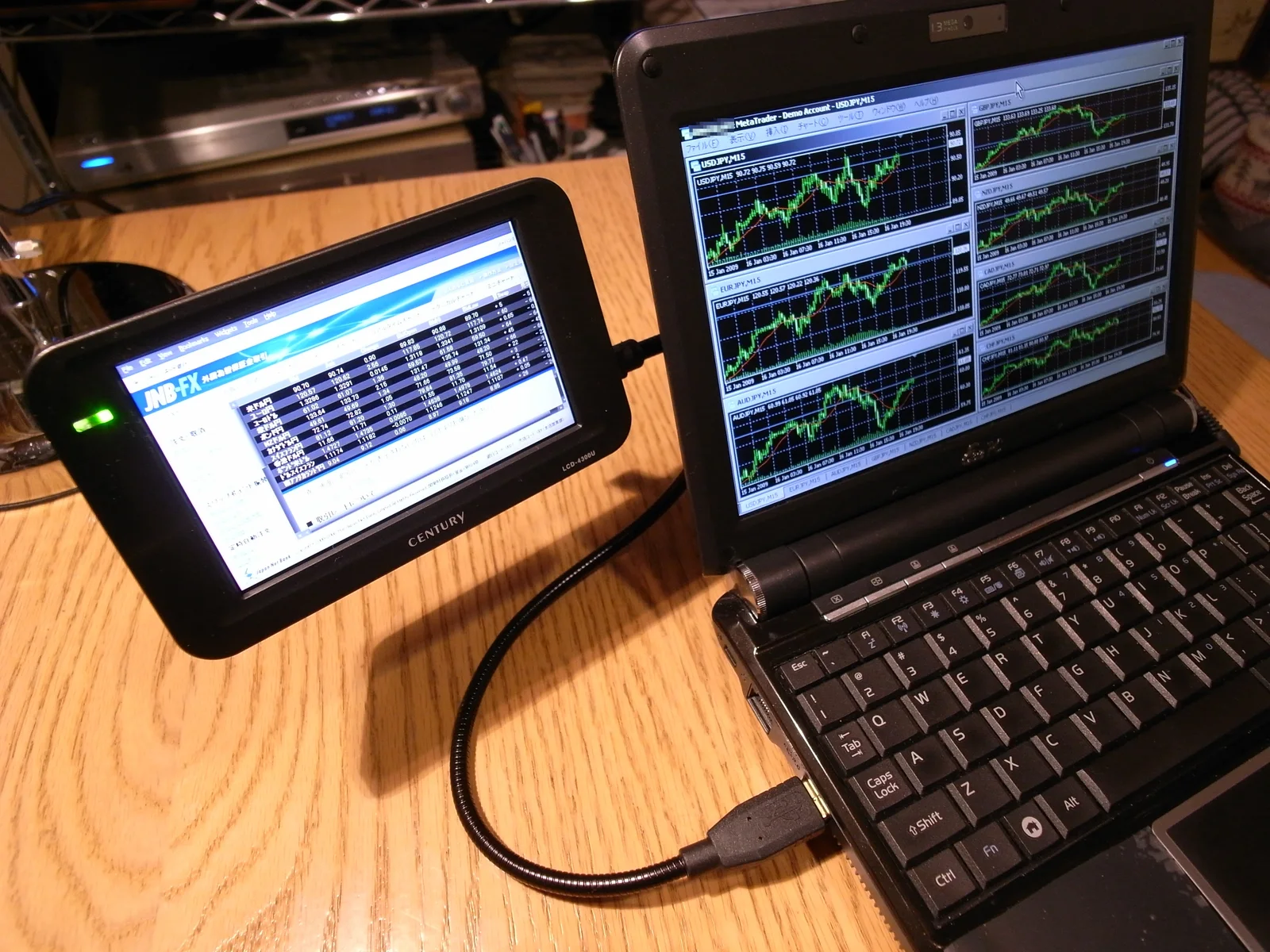
A monitor sold with a built-in KVM does two things at once. It changes which input is shown, and it hands the keyboard and mouse plugged into the monitor to whichever computer is now on screen. The point is to remove a second keyboard from the desk, not to add display capability.
Dell documents the usual ceiling plainly: you can connect two computers to a monitor that supports the KVM feature. Larger models are the exception rather than the rule, and the UltraSharp U4323QE is the example Dell gives for four computers. The number is a property of the individual model, so the model page or user guide is what settles it, not the category name.
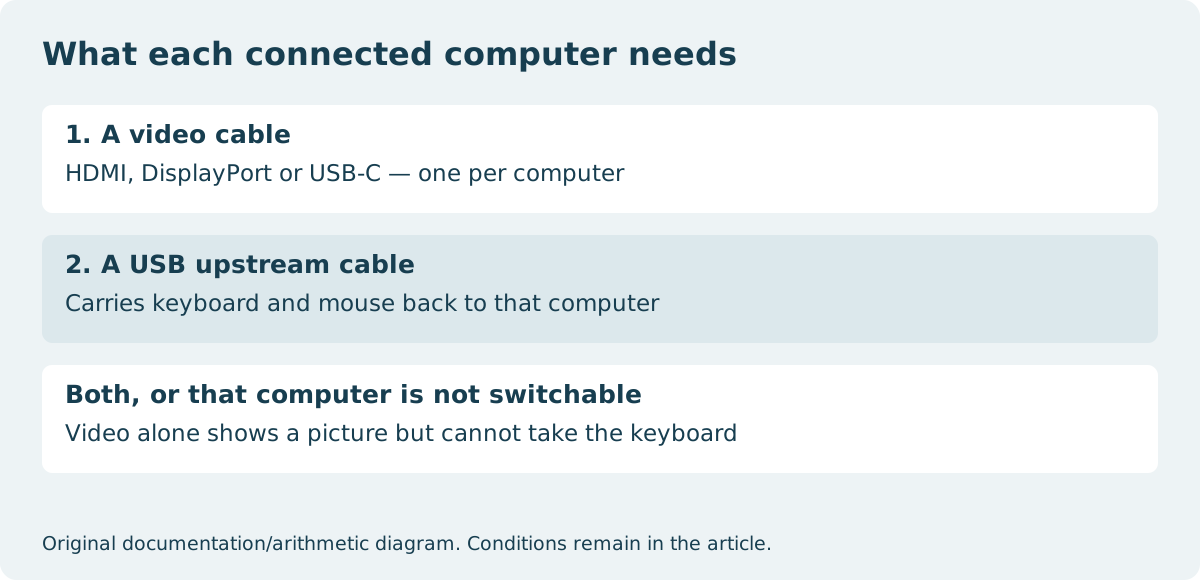
Each computer needs two cables, not one
The failure people hit is connecting a second computer with a video cable only. The picture appears, the input switches, and the keyboard stays with the first machine. That is the expected behaviour, because a video cable carries no keyboard data.
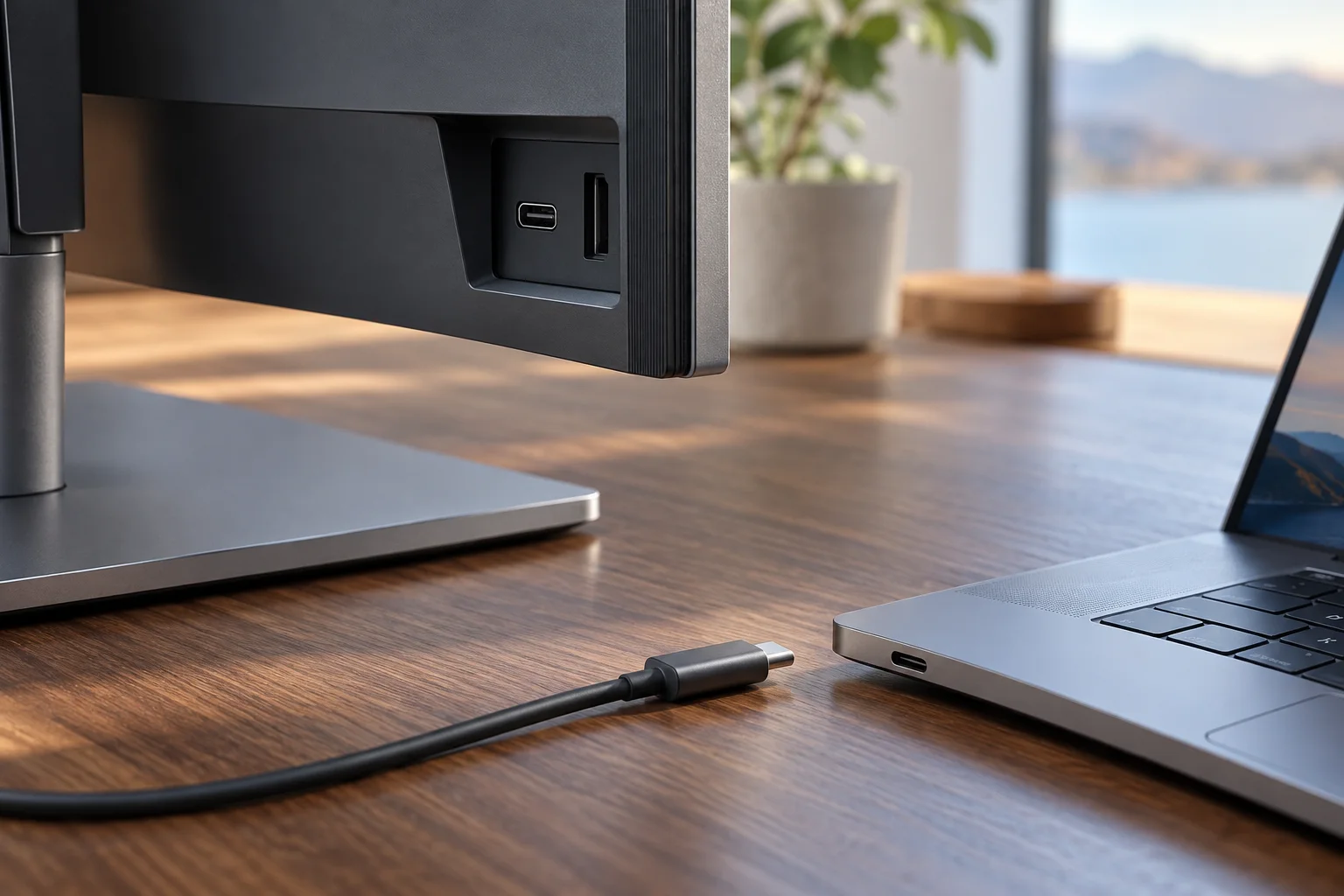
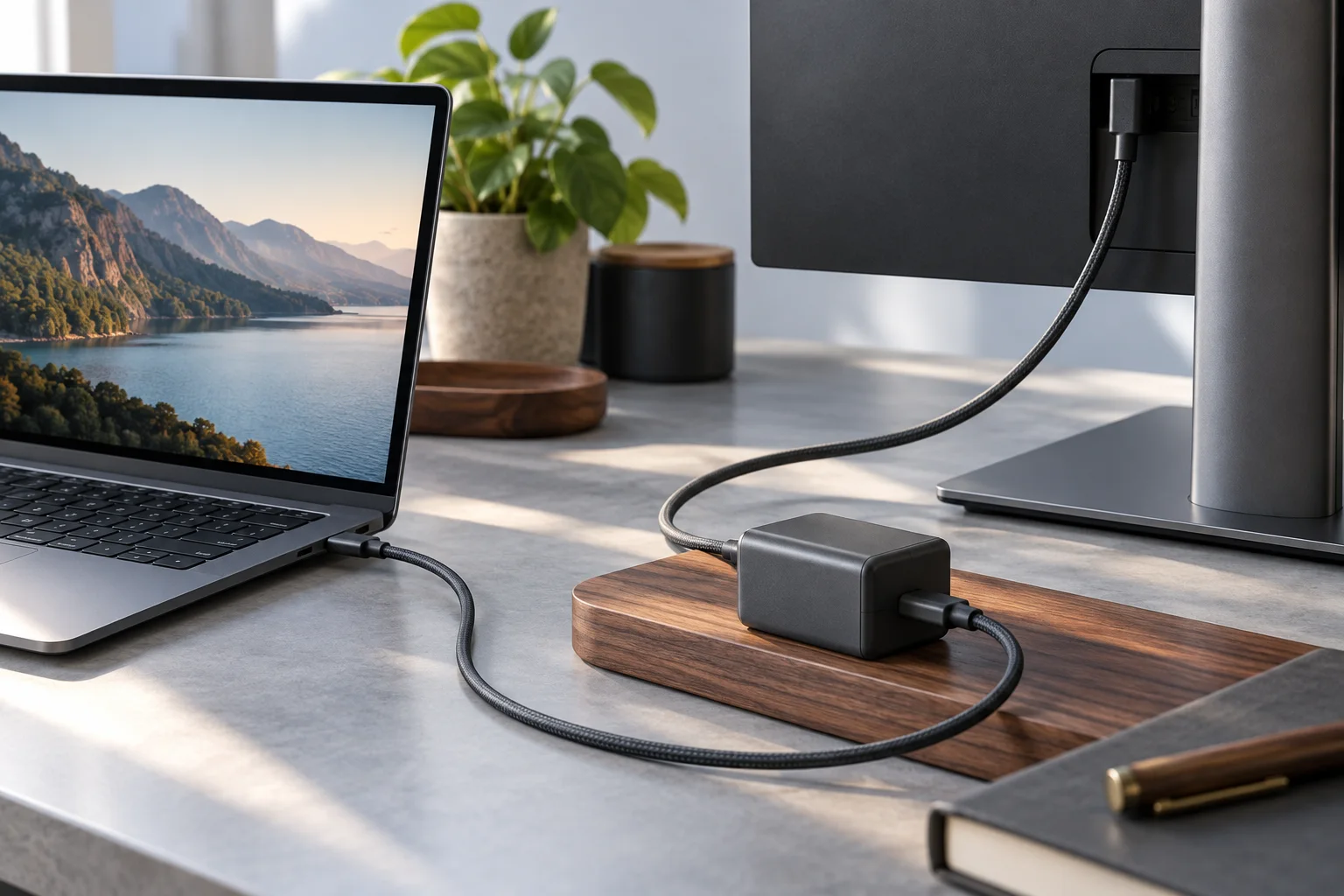
Every computer you want in the rotation needs a video connection — HDMI, DisplayPort or USB-C — and a USB upstream connection back to the monitor. The upstream link is what lets the monitor present the shared keyboard and mouse to that computer. A USB-C connection can carry both at once; HDMI and DisplayPort cannot, so those machines need a separate upstream cable.
| Computer | Video cable | USB upstream | Result |
|---|---|---|---|
| PC 1 | USB-C | Carried on the same USB-C cable | Picture, keyboard and mouse |
| PC 2 | HDMI or DisplayPort | Separate USB-B to USB-A cable | Picture, keyboard and mouse |
| Any PC | Connected | Not connected | Picture only; the switch cannot reach it |
The pairing Dell documents when one source is USB-C
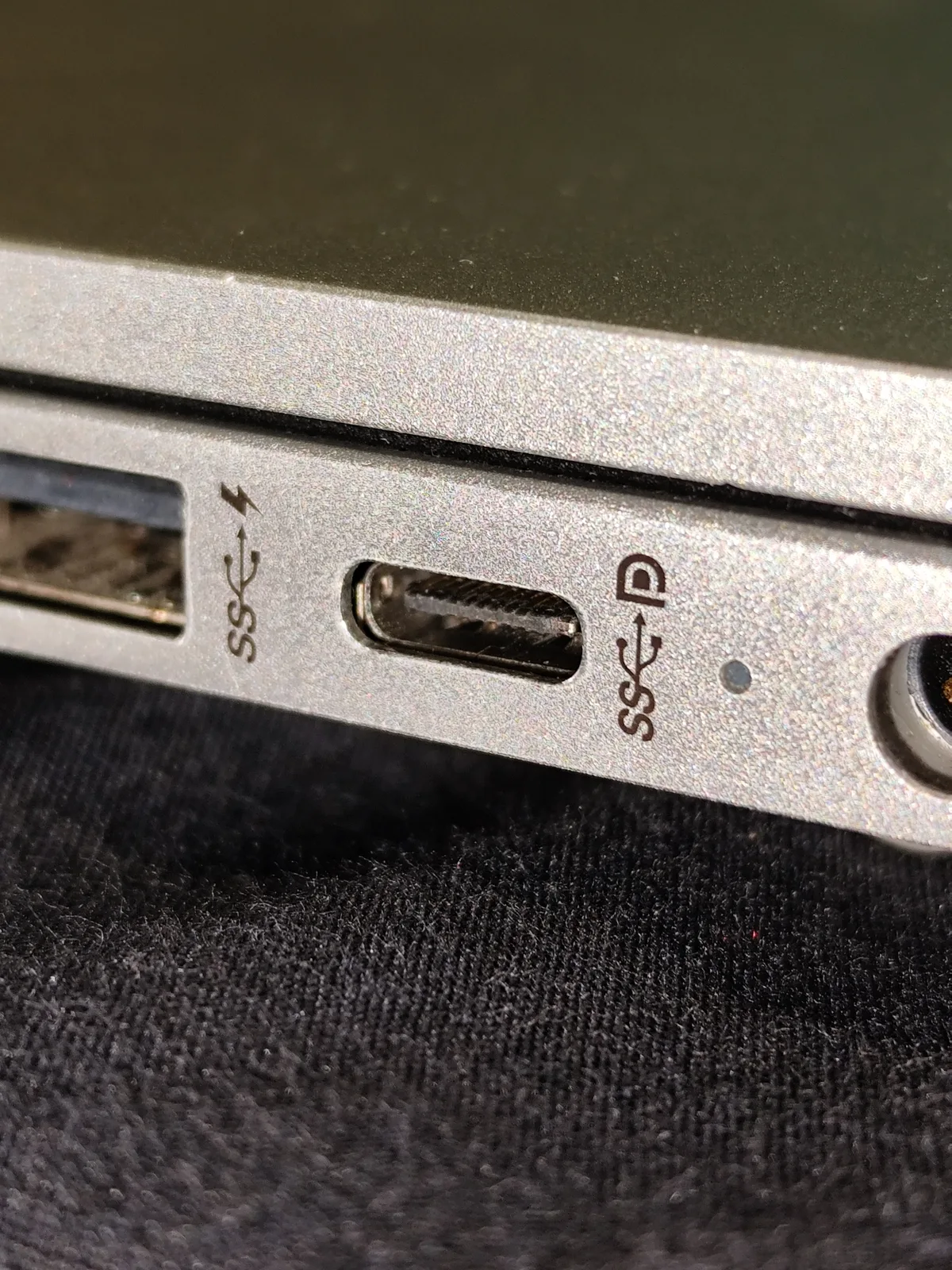
Dell states the combination directly: if PC 1 is connected using a USB-C cable, connect PC 2 to the monitor using the USB-B to USB-A upstream cable. It also notes that where PC 1 occupies the USB-C input, PC 2 should use HDMI or DisplayPort for video.
This matters when you are counting what arrives in the box. Dell says compatible USB upstream cables are shipped with monitors that support the KVM feature, so a two-computer setup is usually complete on delivery. A third or fourth machine on a model that supports them is where you check whether another upstream cable is included or has to be ordered.
Where the shared keyboard and mouse plug in
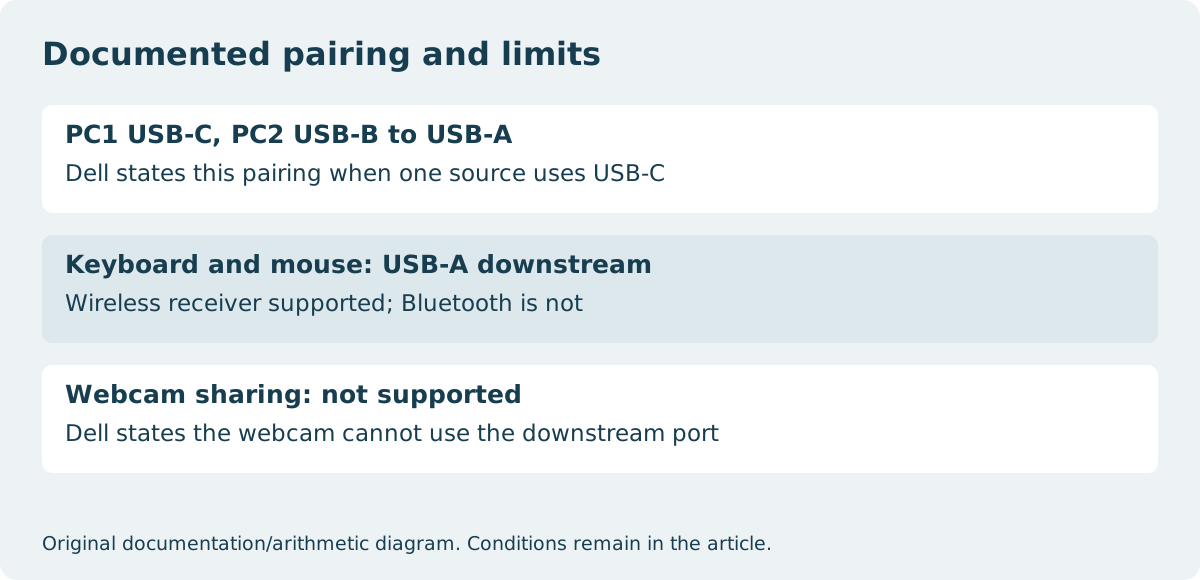
The shared keyboard and mouse connect to the USB-A downstream ports on the monitor itself, not to either computer. That is what makes them switchable; a keyboard plugged into one computer stays with that computer.
Wireless sets work when they use a receiver — Dell describes connecting the USB receiver supplied with a wireless keyboard and mouse to the downstream port. Bluetooth devices are not supported, because a Bluetooth pairing lives on the computer rather than on the monitor and therefore cannot be handed across.
What the switch does not carry
Webcam sharing is not supported, and Dell states that webcams cannot use the downstream USB port for this purpose. If a camera has to follow the active computer, a monitor KVM is not the mechanism.
Configuration is also software-assisted rather than purely physical. Dell Display and Peripheral Manager is the tool for KVM setup and for assigning shortcut keys to switch between computers, so a plan that assumes an on-monitor button alone may not match the model in front of you.
What to confirm before ordering
None of this requires a product test to verify. It is all stated in the documentation for the specific model, and it can be checked before any money is spent.
- How many computers the model supports — two is the documented norm, four is the exception.
- How many USB upstream connections exist, and whether one of them is the USB-C input you were already planning to use.
- Which upstream cables ship in the box, and which you would have to buy.
- That your keyboard and mouse use a USB receiver rather than Bluetooth.
- That nothing you need to switch is a webcam.