Check what a touch monitor needs before you order
Touch travels on a USB data link, not on the video cable. Confirm the cabling route and the port it lands on before the monitor arrives.
Updated:
Touch is a data path, not a display feature
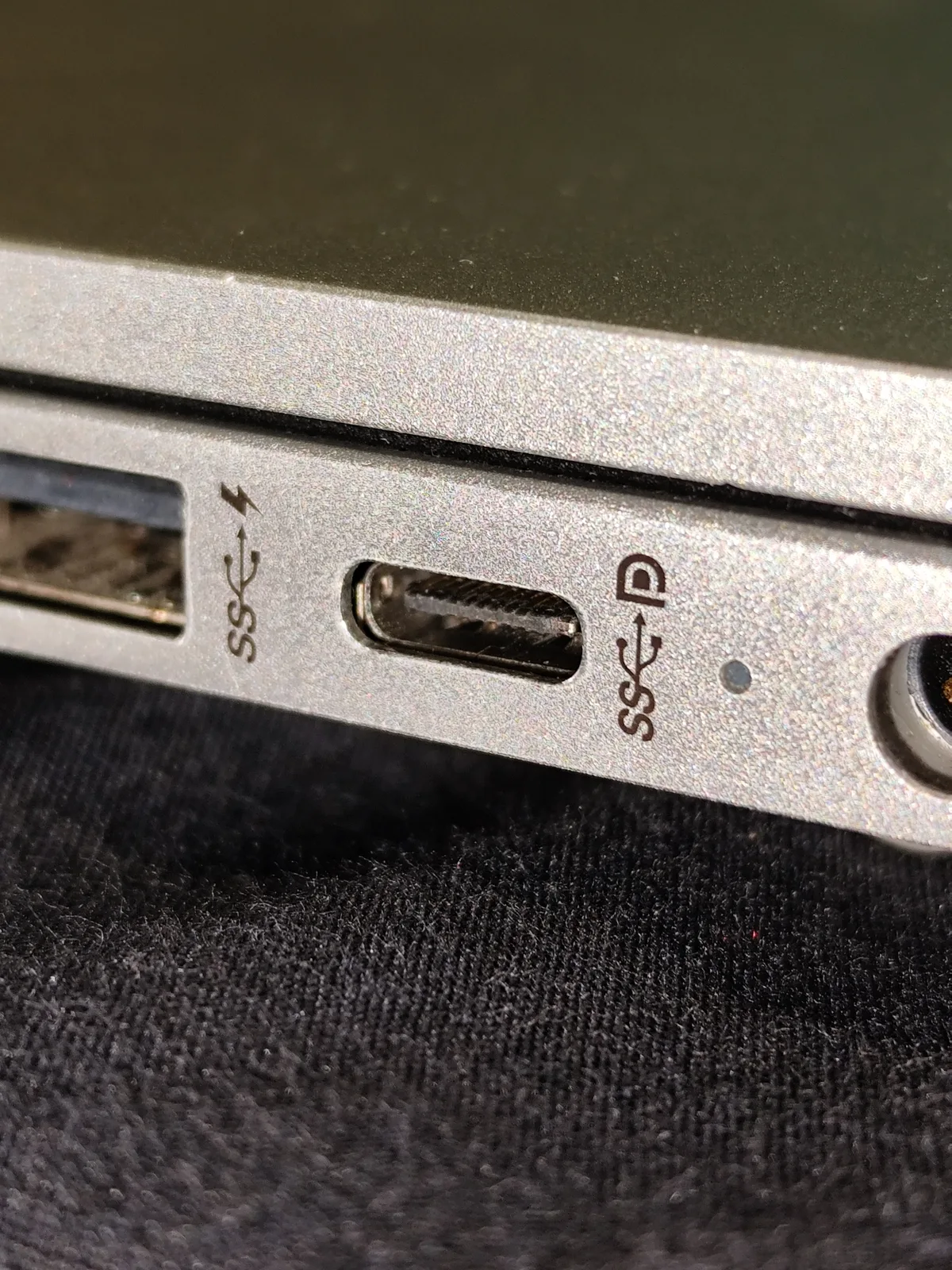
A touch monitor connected with a video cable alone shows a picture and ignores every finger that lands on it. That is not a fault. Dell states the requirement without qualification: a touch monitor needs a USB cable from the monitor to the computer in addition to the video cable, and touch does not work without the USB connection.
Reading it that way removes most of the confusion. The video cable decides what is displayed. A separate USB link decides whether the computer hears anything back. A desk plan that accounts for one and not the other produces a working display and a dead touch layer.
The routes documented for a current model
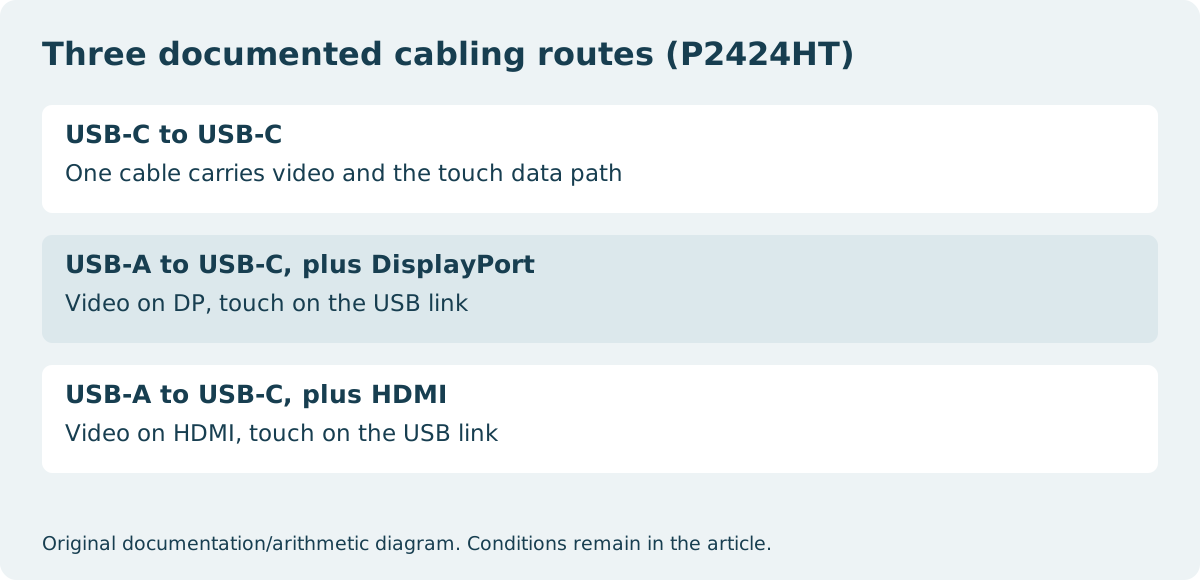
Dell lists three valid cabling combinations for the P2424HT, and they are worth reading as a set rather than as alternatives of equal convenience. One uses a single cable; the other two use a pair.
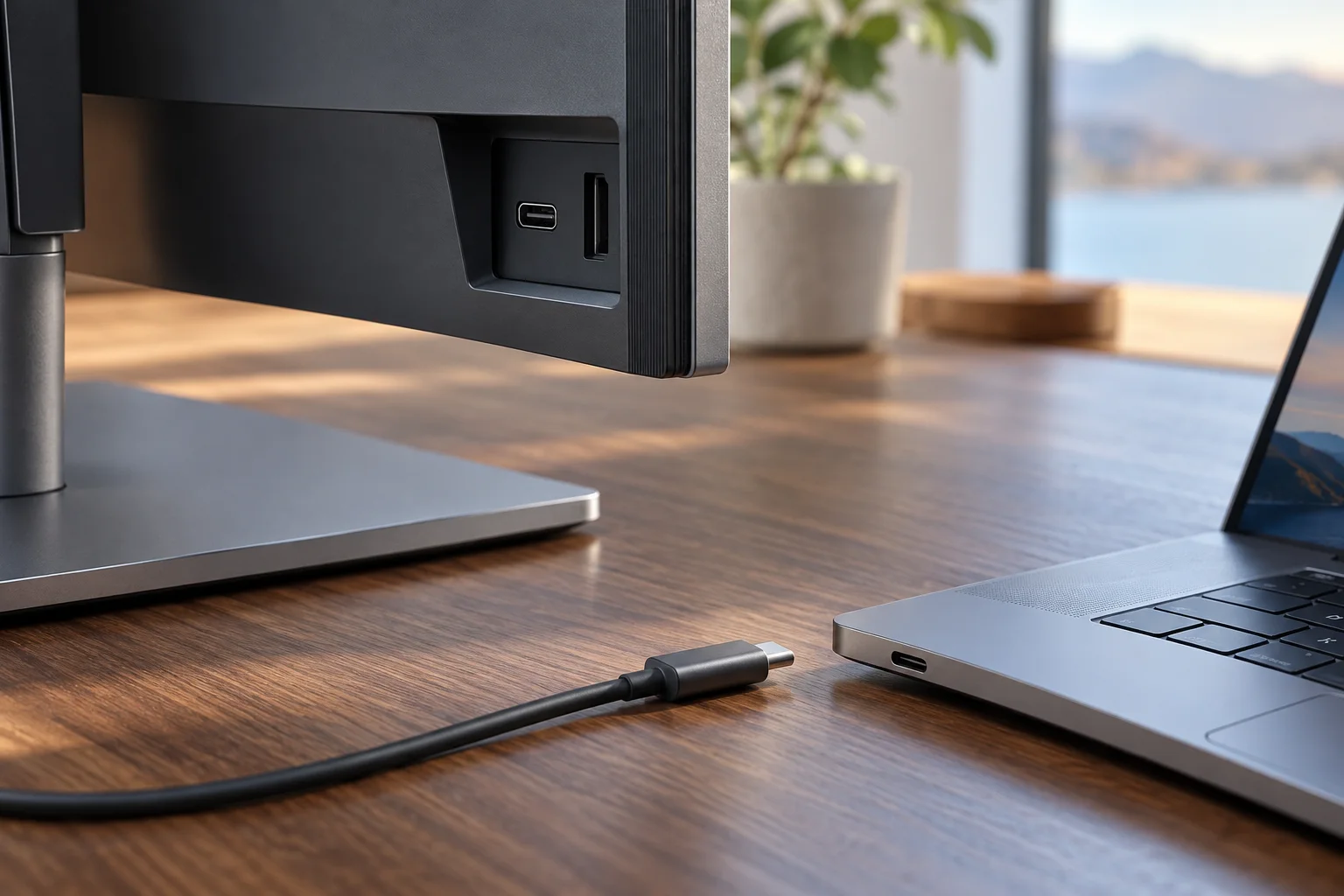
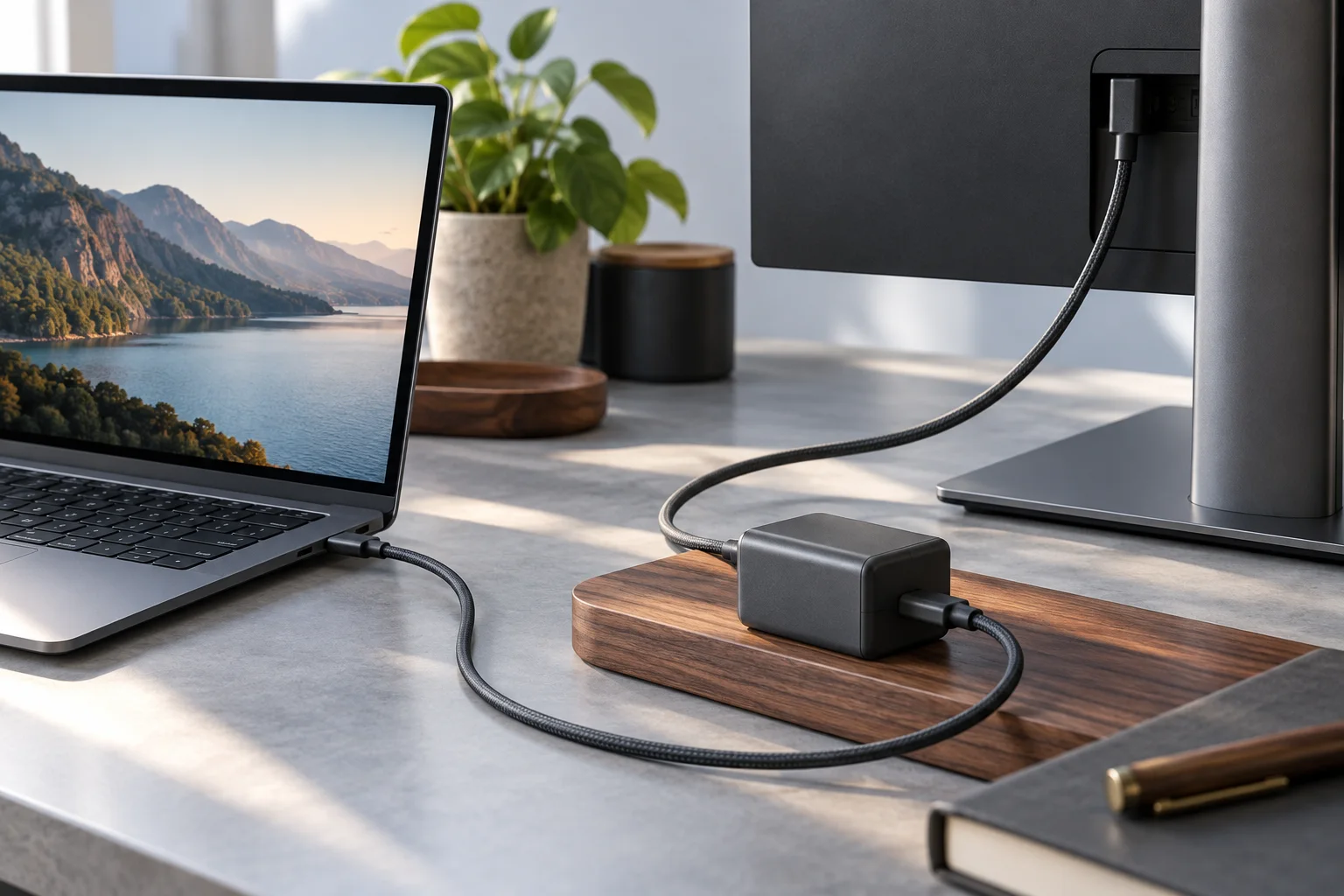
The single-cable route is USB-C to USB-C between the computer and the monitor. The two-cable routes pair a USB-A connection on the computer to a USB-C connection on the monitor with either a DisplayPort or an HDMI cable for video. Dell adds the condition that applies to all three: all cables and connector interfaces must be inserted in place.
| Route | Video carried by | Touch carried by | Cables |
|---|---|---|---|
| USB-C to USB-C | The USB-C cable | The same USB-C cable | One |
| USB-A to USB-C + DisplayPort | DisplayPort cable | The USB link | Two |
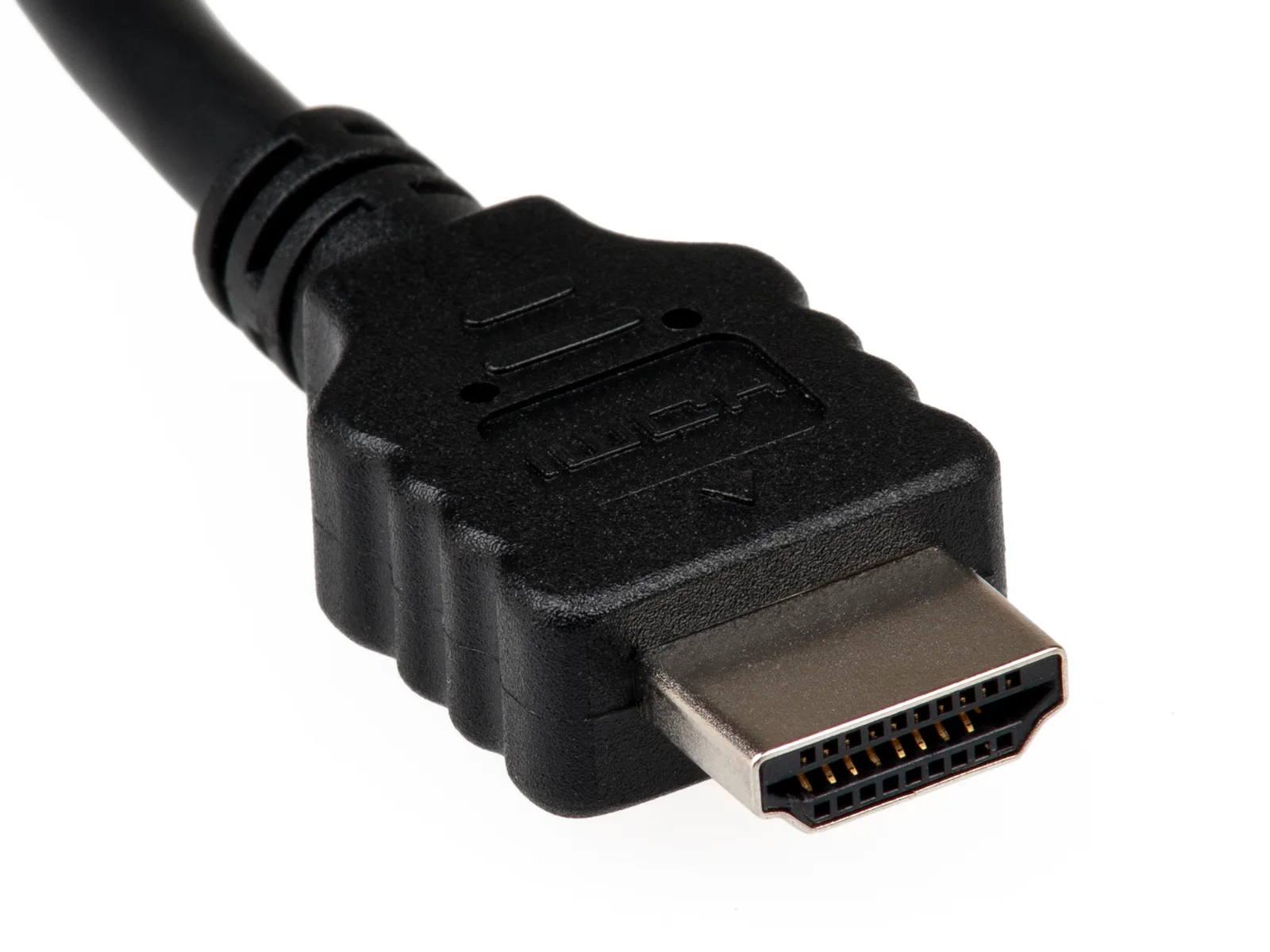
| USB-A to USB-C + HDMI | HDMI cable | The USB link | Two |
| Video cable only | That cable | Nothing | One, and touch will not respond |
Where the USB cable has to land
The USB link runs between the monitor upstream port and a USB port on the computer. Dell names both ends when troubleshooting: check that the USB cable connecting a touch monitor is properly linked to both the monitor upstream port and a computer USB port.
The computer end is the part that gets improvised. A cable routed into a keyboard, a hub on the far side of a desk, or a downstream port on another device is not the connection described in the documentation, and a touch layer that depends on it is not a configuration anyone has published as working.
What the operating system has to show
Dell frames the current troubleshooting path around Windows 11 and Windows 10. The check it describes is whether Windows detects touch capability at all, which appears as a Pen and touch entry in System settings. If that entry is absent, the problem is upstream of any calibration setting.
The driver side is less work than people expect. Dell describes the driver appearing in Device Manager under Human Interface Devices as HID-compliant touch screen, and states that it is built into Windows 11 and Windows 10, with Windows Update installing it automatically when needed. A touch monitor is therefore not normally a driver-installation project on a current Windows machine.
The physical cause that is not a cable
One failure has nothing to do with connections. Dell lists checking whether a screen protector is blocking capacitive touch detection. A film added for glare or privacy sits in the sensing path, and the symptom — picture fine, touch unreliable — looks identical to a cabling problem.
It is worth separating in advance, because it changes what you buy alongside the monitor rather than what you buy instead of it.
What to confirm before ordering
Each of these is answerable from the model documentation and from the ports already on your computer.
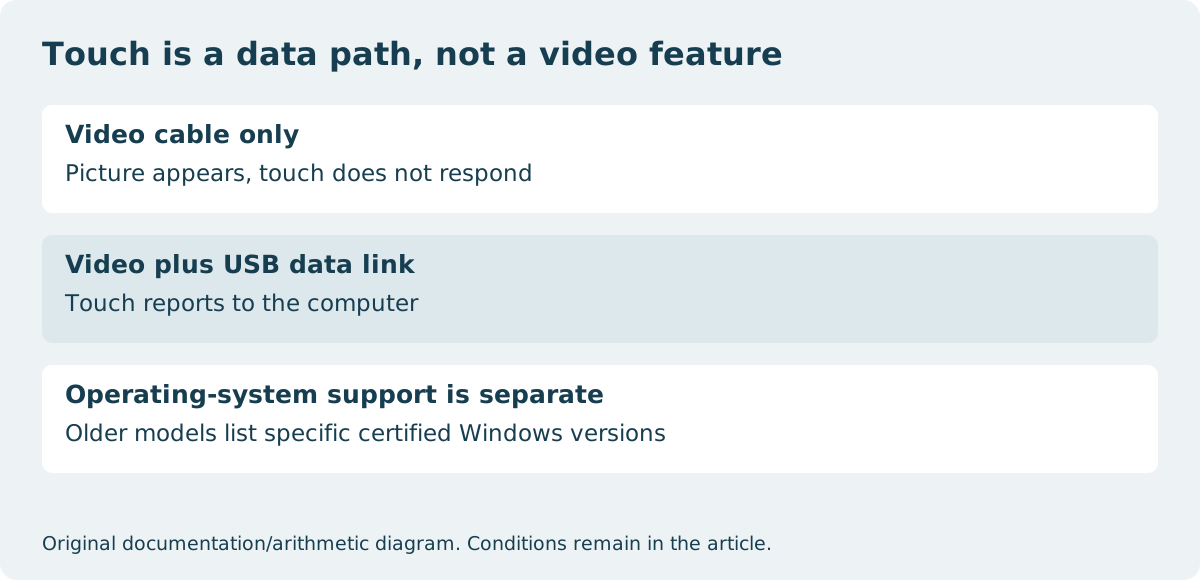
- Which of the documented routes your computer can actually provide — a USB-C port that carries video, or a free USB-A port plus a DisplayPort or HDMI output.
- That a cable for the touch link is included, or budgeted.
- That the computer-side port is on the computer itself, not on a peripheral.
- That the operating system is one the model documentation covers.
- That any screen film you plan to add is specified as compatible with touch.
Dell: Troubleshoot touchscreen and touch panel issues ? Dell: Touch function does not work on Dell P2424HT ?