Check the refresh rate supported by the whole connection
Compare exact Dell display modes and inspect the selected Windows11 output before treating a refresh-rate label as a complete setup.
Updated:
Choose a supported resolution-and-rate pair
Check refresh rate as a complete display mode: resolution plus the number of image refreshes per second. Match that pair to the documented source output, connection path and monitor input. A monitor’s headline maximum is not evidence that every input, dock and source can deliver it. It also does not state the frame rate your application will render or the time between an input action and the visible result.
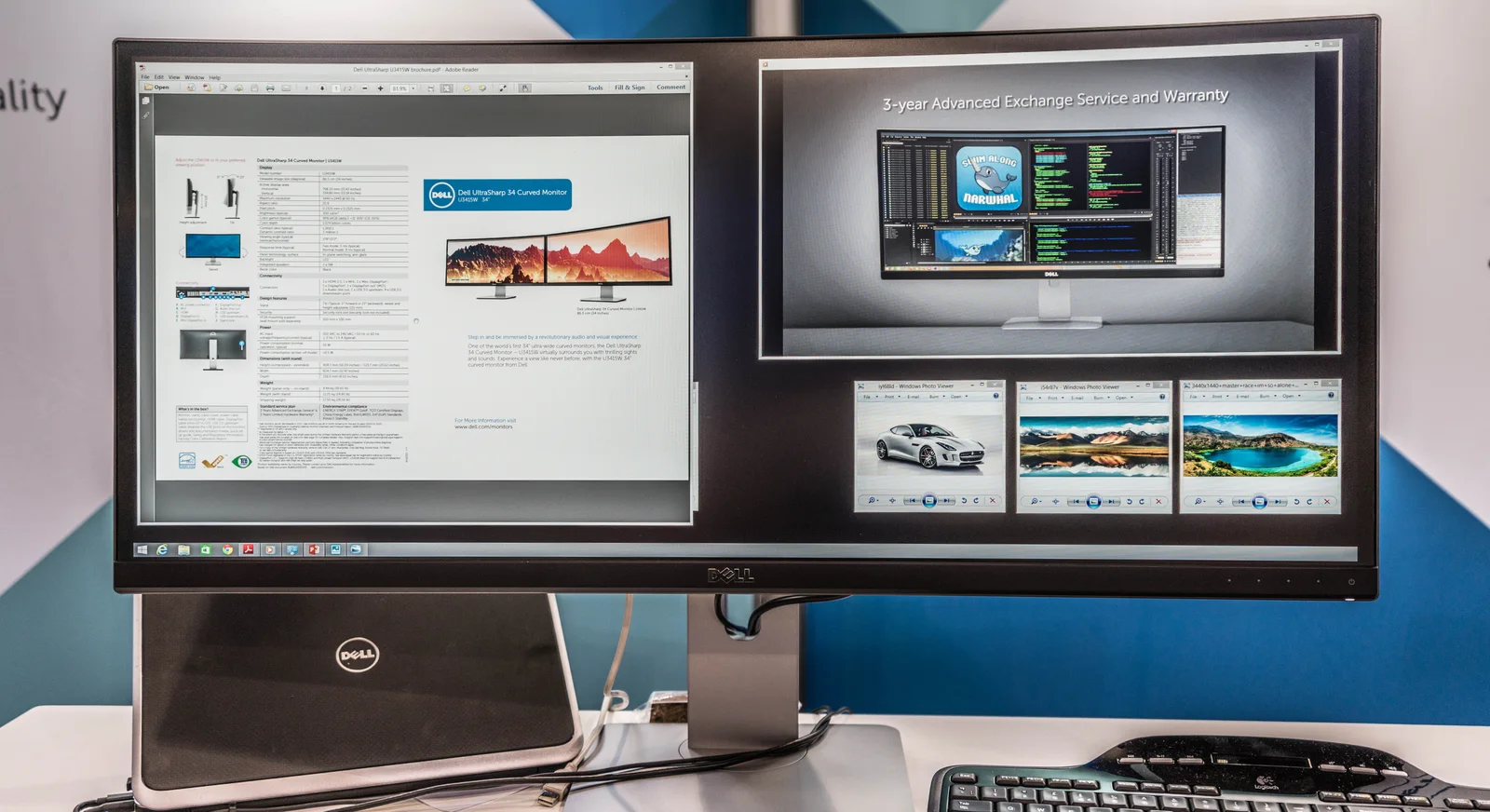
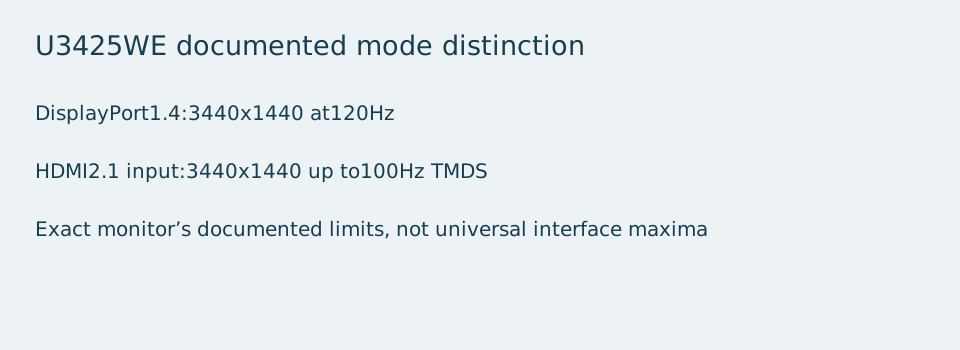
For example, the older Dell U3415W brochure lists 3440 × 1440 at 60 Hz. Dell’s US U3425WE interface details distinguish 3440 ×1440 at 120 Hz over DisplayPort1.4 from up to 100 Hz TMDS over its HDMI2.1 input. These exact documented examples were checked on 2026-10-28. A buyer who needs120 Hz at that pixel grid should therefore evaluate a supported DisplayPort or appropriate Thunderbolt route, rather than choosing the HDMI connector solely because its version label sounds recent.
Compare the documented inputs, not just the model headline
The comparison does not establish that the newer monitor is suitable for your computer or that your current cable supports the intended route. It shows a concrete decision-changing difference: one model’s maximum and another model’s input-specific limits. Do not copy a mode listed for DisplayPort onto HDMI, or assume that all monitors sharing an interface version have the same limitations. Keep the exact input name beside the number in your notes.
| Exact documented example | Native grid / documented rate | Limit of the comparison |
|---|---|---|
| Dell U3415W; brochure rev6June2016 | 3440 ×1440 at 60 Hz maximum listed | Historical documentation, not every mode of every input |
| Dell U3425WE; US DisplayPort1.4 details | 3440 ×1440 at 120 Hz | Requires a matching supported source and route |
| Dell U3425WE; US HDMI2.1 details | 3440 ×1440 up to 100 Hz TMDS | Do not infer the120 Hz DisplayPort mode on this input |
Inspect the selected display in Windows11
Microsoft documents the Windows11 path through Settings, System, Display and Advanced display. Inspect the intended display, especially when a notebook screen and an external display are both present. The information panel identifies the current resolution and refresh rate. Choose from the available rates only after checking the intended resolution; Microsoft notes that an asterisk marks a rate whose selection changes the current resolution.
If the desired pair is missing, stop short of claiming that the monitor is defective. Compare the documented source and connection requirements with the actual route, including any dock or adapter. Preserve the current settings and model numbers for support. Do not force an undocumented custom mode merely to match a product headline. A mode appearing in a menu and a stable, supported setup are related checks, not a substitute for reading the exact equipment documentation.
Read timing arithmetic without turning it into a performance test
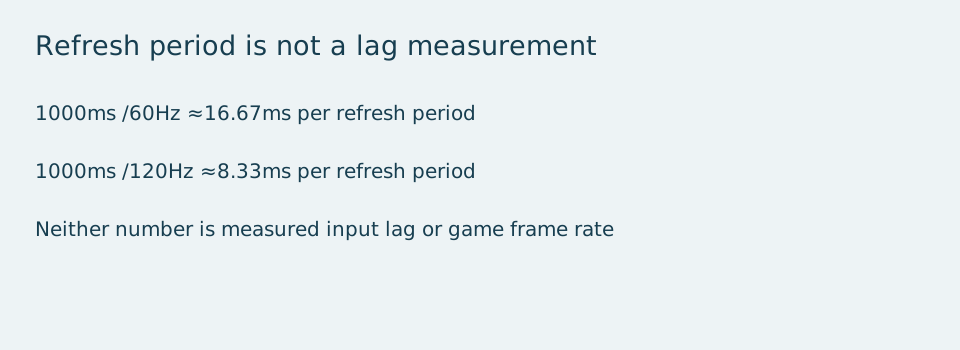
A 60 Hz refresh period is1000 divided by60, approximately 16.67 milliseconds. At120 Hz, the corresponding period is about 8.33 milliseconds. Those are mathematical periods for the stated rates; they are not measured input lag, pixel transition time or an assurance that a game supplies a new rendered frame on every refresh. The shorter interval helps describe the rate, while leaving those other performance questions unresolved.
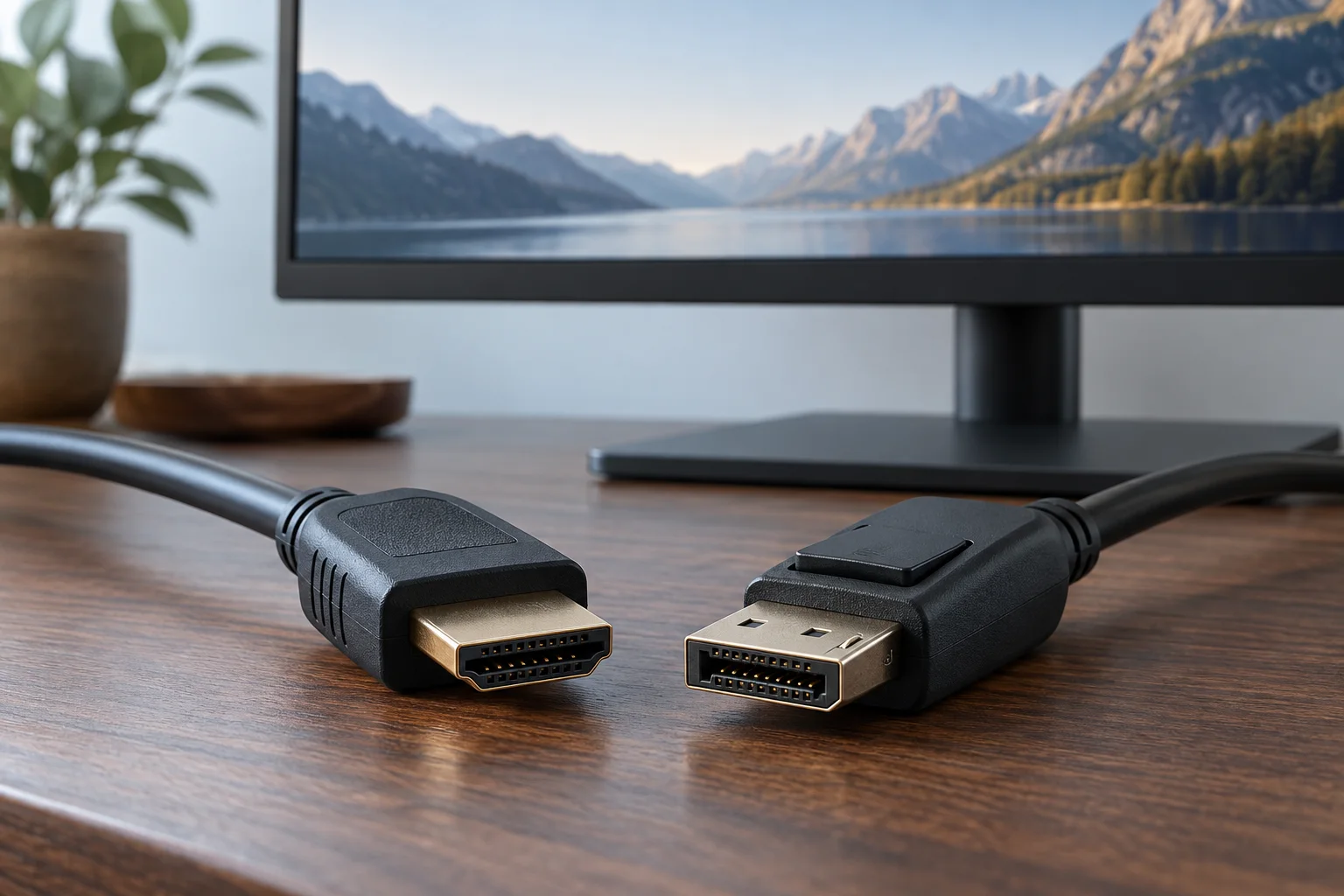
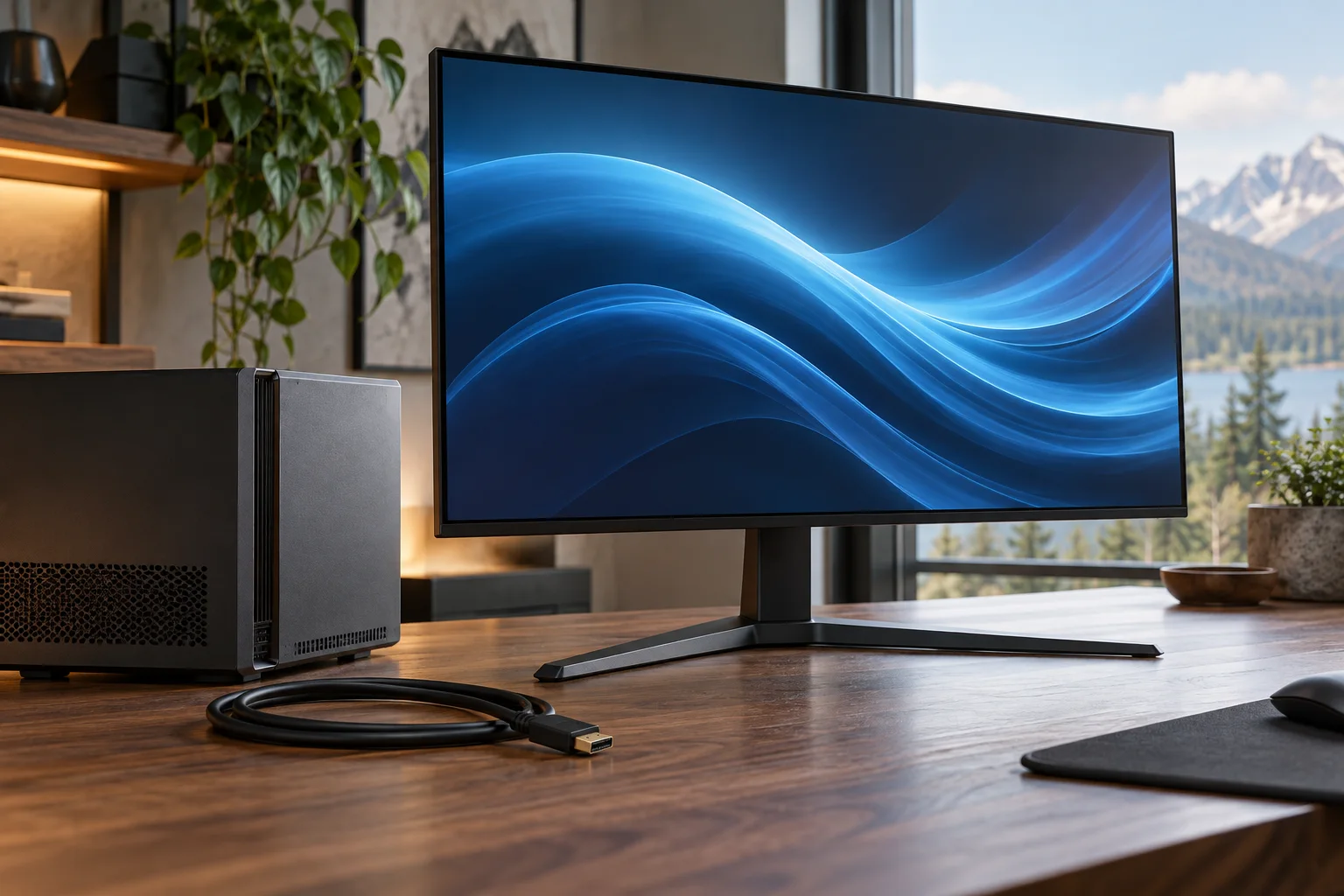
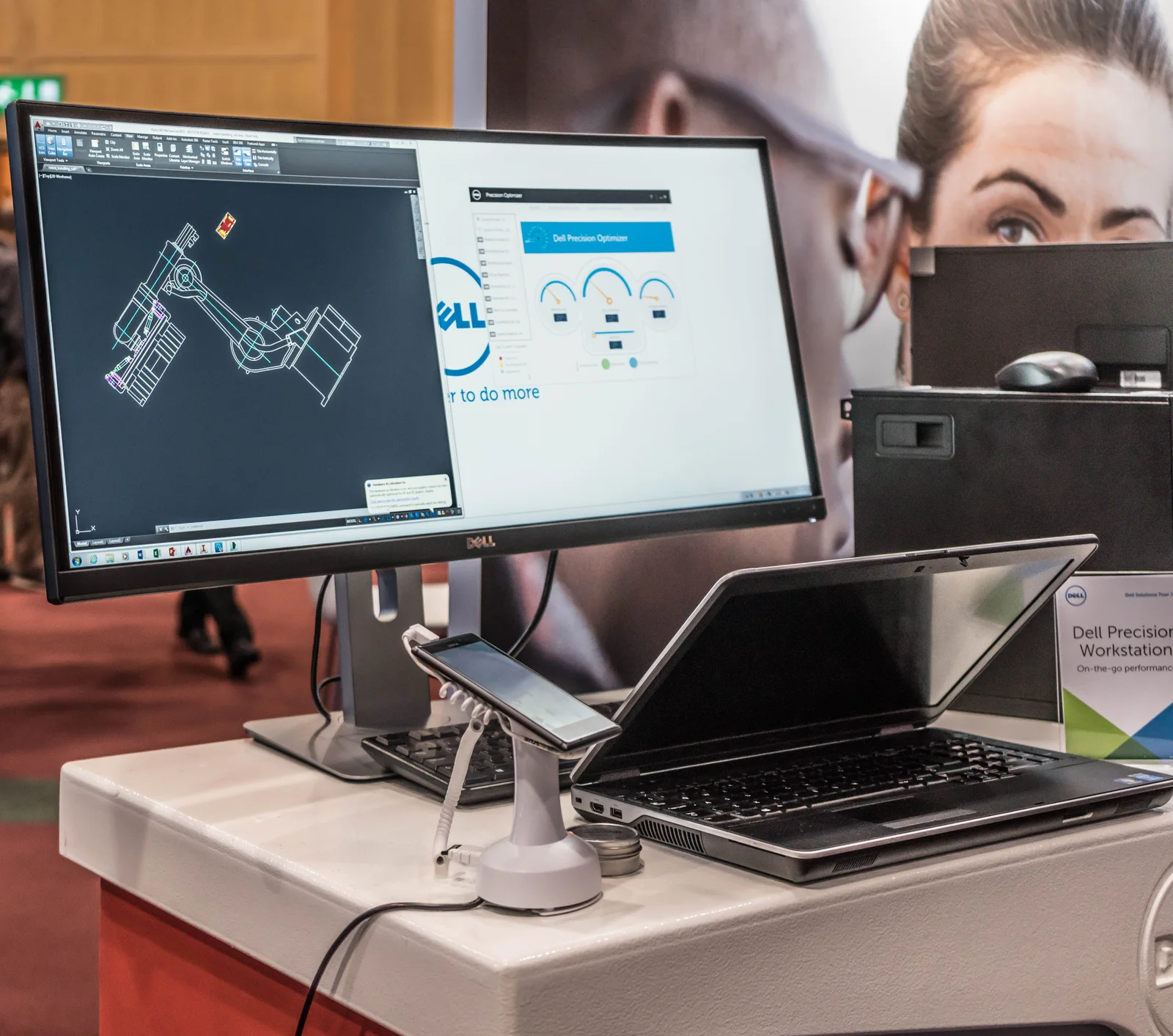
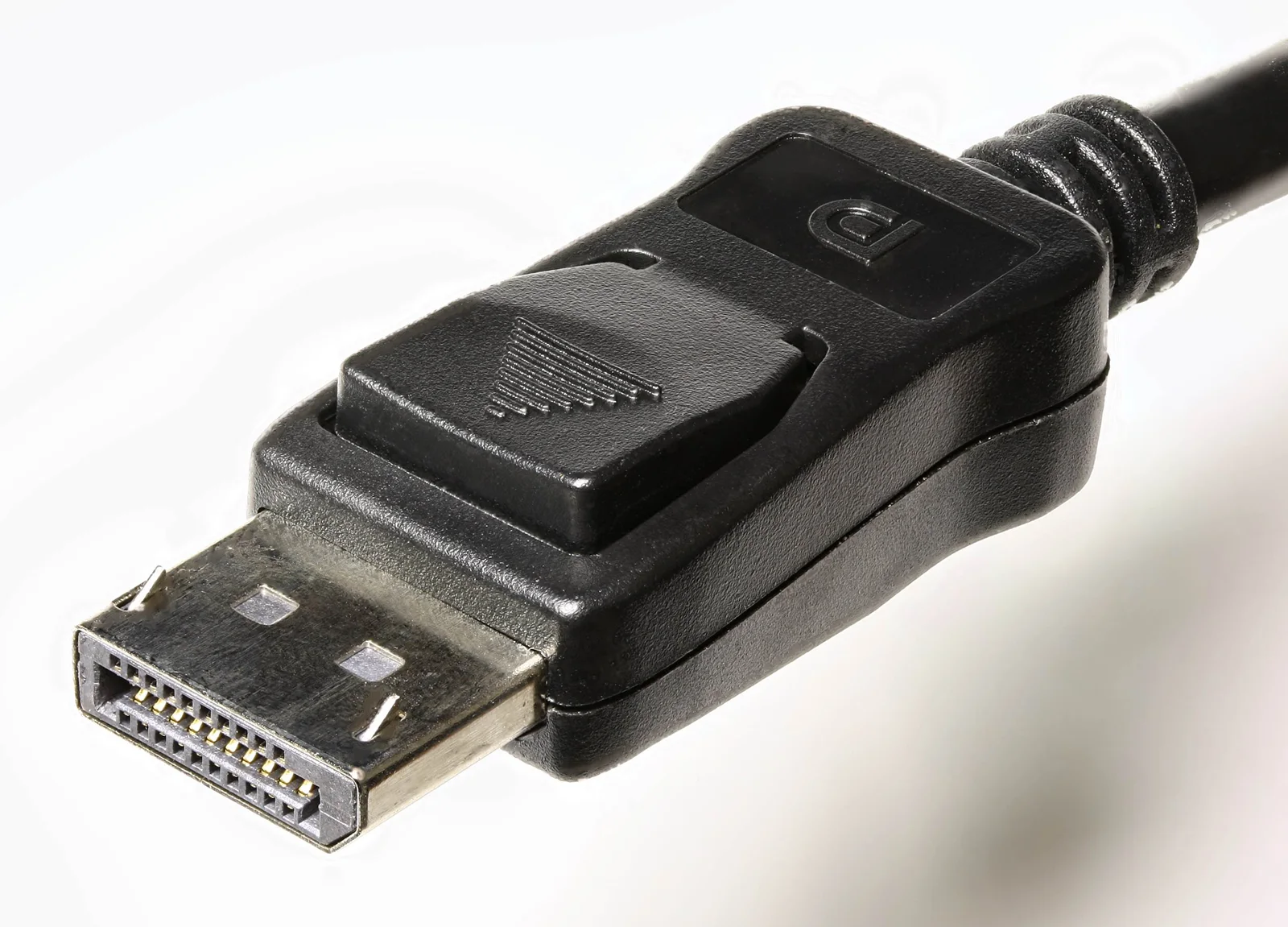
The real photographs show an archival U3415W display, a U3415W with a notebook and a DisplayPort plug. They illustrate the physical display and connection choices discussed here. They do not capture a measurable refresh rate or establish the cable’s certification. The U3425WE limits in the table come from its manufacturer documentation, rather than the photographs.
Keep variable and dynamic refresh claims separate
Do not treat a high fixed refresh rate as proof of every variable-refresh feature. Microsoft’s Dynamic Refresh Rate feature has separate hardware requirements, including VRR support and a refresh rate of at least 120 Hz. Meeting one number alone is not a complete DRR compatibility check. Keep the exact feature requirement separate from the basic supported display mode, then choose the configuration that actually meets both if both are needed.